> ## Documentation Index
> Fetch the complete documentation index at: https://docs.bytebase.com/llms.txt
> Use this file to discover all available pages before exploring further.
# Admin Mode
Be really careful when using Admin Mode, since you are taking full control of your database.
If you are a `Workspace Admin` or `Workspace DBA` or granted a [custom role](/administration/roles) having the `bb.admin.sql` permission, you can
break the glass and execute arbitrary statements.
## Run query in Admin Mode
Click **Admin Mode** button to open a separate Admin Mode tab. Note that this is only available for DBAs and Workspace Admins.
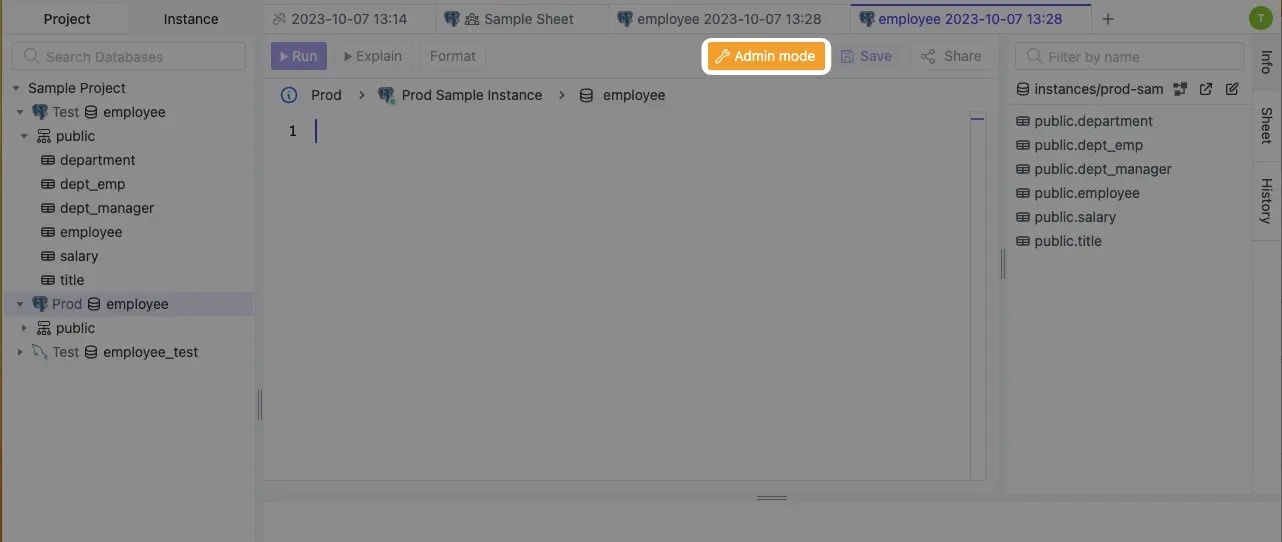 In Admin Mode, you are not limited to run SELECT, DDL and DML change queries subject to the [statement execution policy](/change-database/environment-policy/overview#statement-execution-mode), but also allowed to run database administration SQL statements such as SHOW, SET, GRANT, etc.
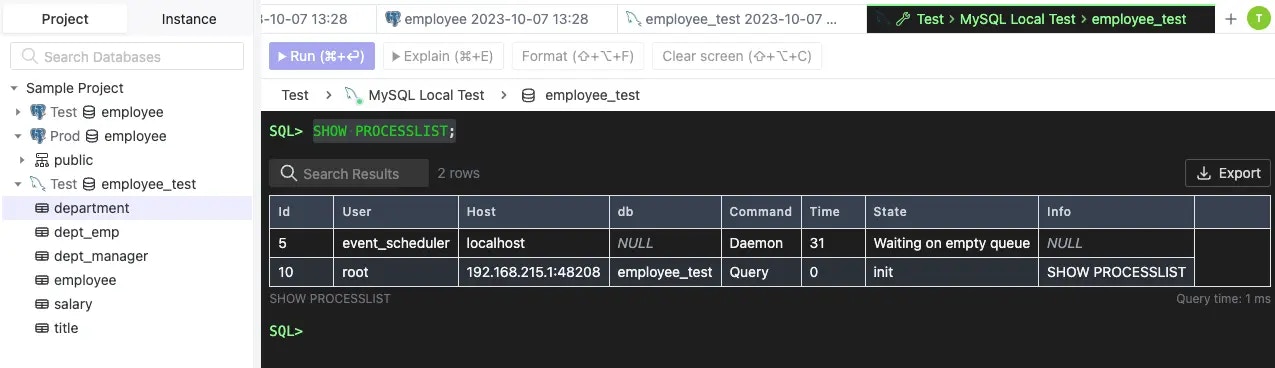 In Admin Mode, click the **Clear screen** button or use its keyboard shortcut ⇧ + ⌥ + C to clear the screen. You can also press ⌘ + Up / Down or Ctrl + Up / Down to explore history statements backward or forward.