> ## Documentation Index
> Fetch the complete documentation index at: https://docs.bytebase.com/llms.txt
> Use this file to discover all available pages before exploring further.
# Manage SQL Scripts
`Sheet` is the medium for you to interact inside SQL Editor. Sheet is the entity where you store,
run and share the SQL scripts with your teammates.
## Save sheet
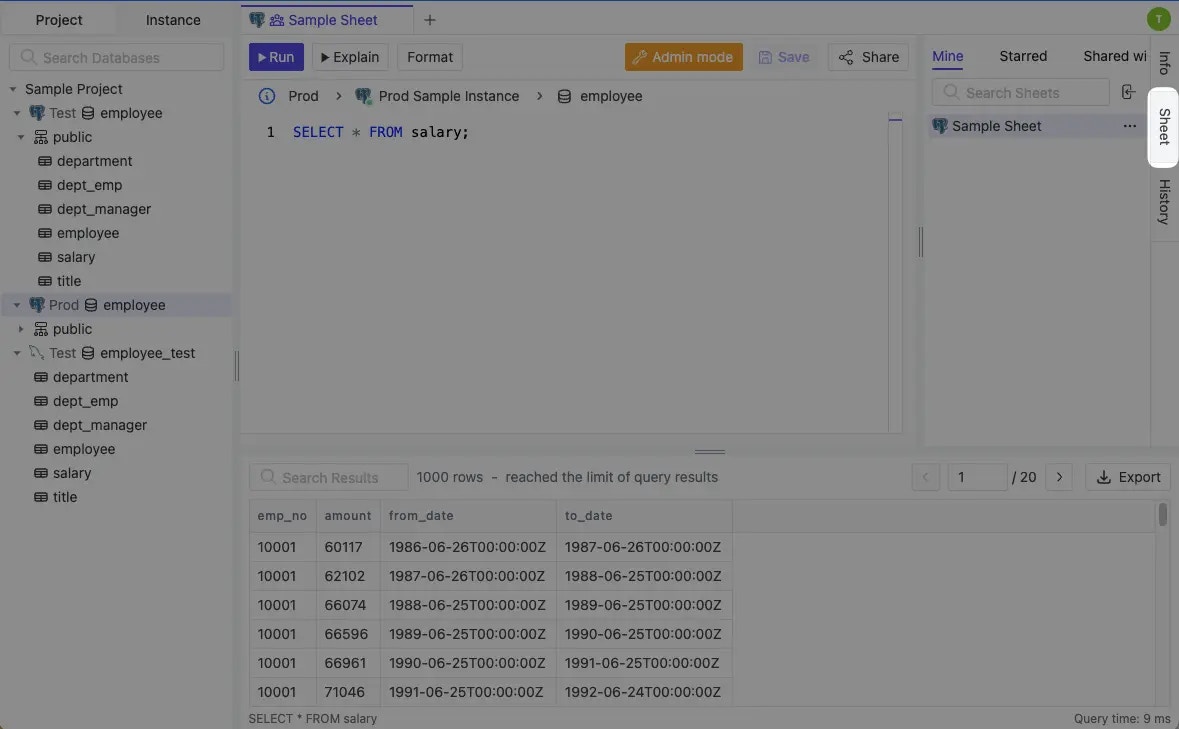
Click **Save** on the upper right of the Editor or use the shortcut key `(⌘ + S)` to save
your SQL queries for later reference. SQL Editor will also automatically record SQL queries which
have run successfully.
 ## Query history
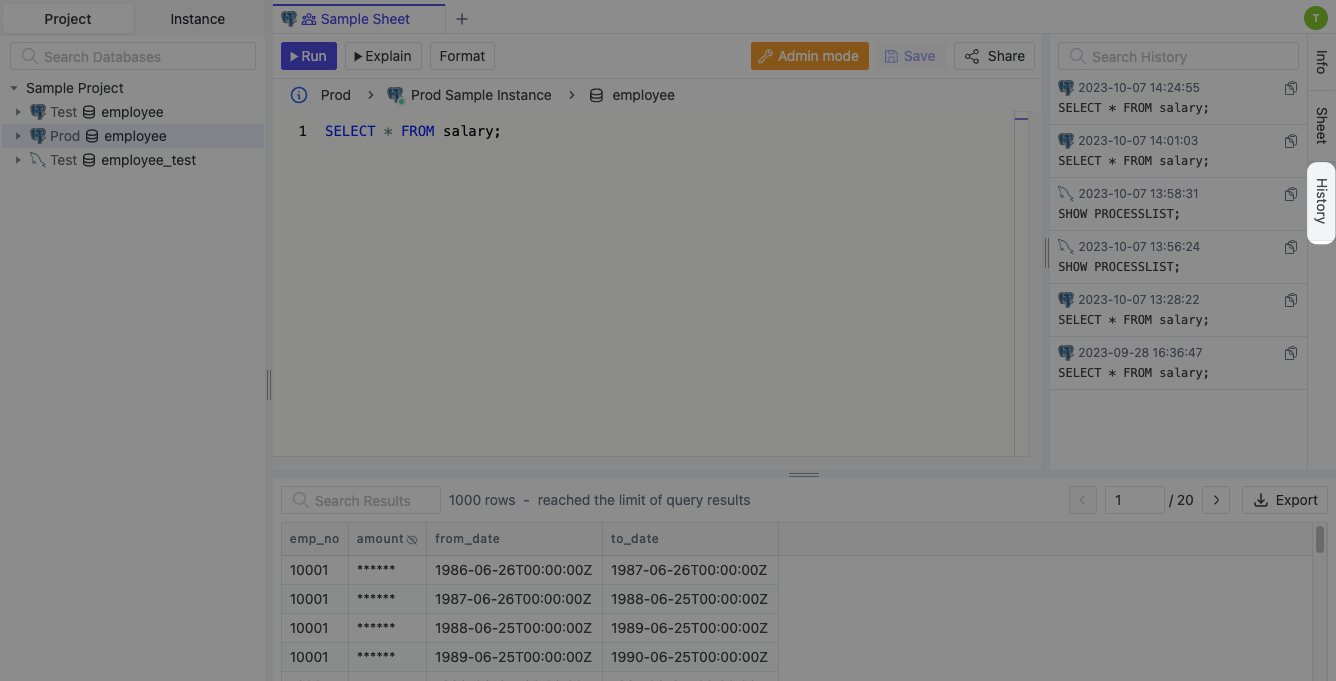
SQL Editor automatically records SQL queries which have run successfully. You can find them in
the **History** panel on the left, where you can search past queries by statement.
## Query history
SQL Editor automatically records SQL queries which have run successfully. You can find them in
the **History** panel on the left, where you can search past queries by statement.
 Each history item has a **Copy history link** button that copies a direct URL to the clipboard.
Opening that URL reopens the item's exact statement and its database connection in a new SQL Editor tab.
Query history is private to the user who ran the query, so a history link only resolves for the creator.
If the original database has since been deleted or is no longer accessible, the statement still opens,
but you need to pick a database connection manually.
## Configure sheet access
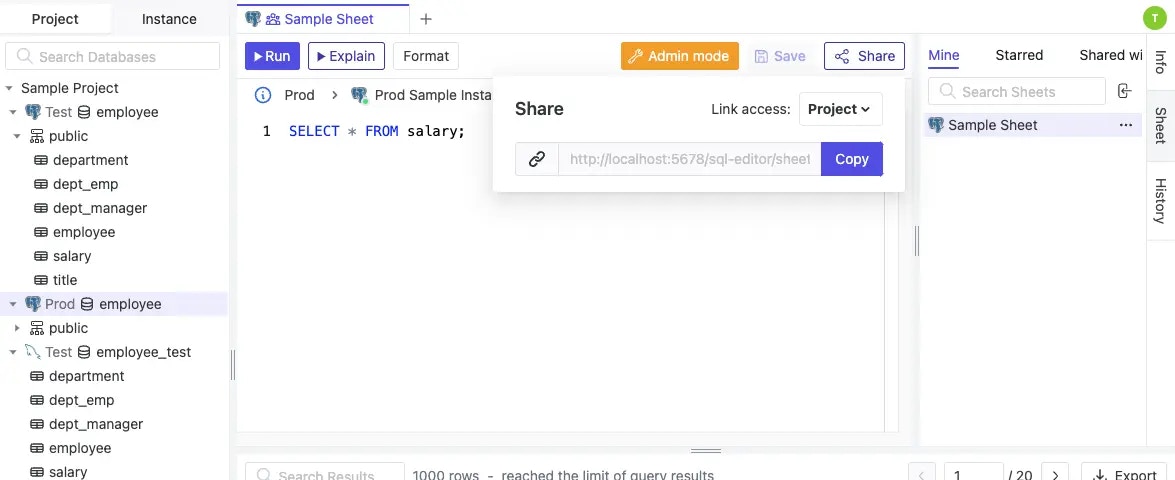
You can configure the sheet with one of the following access levels:
* `Private` - Only you can access this sheet
* `Project` - Both sheet OWNER and project OWNER can read/write, and project DEVELOPER can read
* `Public` - Sheet OWNER can read/write, and all others can read
Each history item has a **Copy history link** button that copies a direct URL to the clipboard.
Opening that URL reopens the item's exact statement and its database connection in a new SQL Editor tab.
Query history is private to the user who ran the query, so a history link only resolves for the creator.
If the original database has since been deleted or is no longer accessible, the statement still opens,
but you need to pick a database connection manually.
## Configure sheet access
You can configure the sheet with one of the following access levels:
* `Private` - Only you can access this sheet
* `Project` - Both sheet OWNER and project OWNER can read/write, and project DEVELOPER can read
* `Public` - Sheet OWNER can read/write, and all others can read
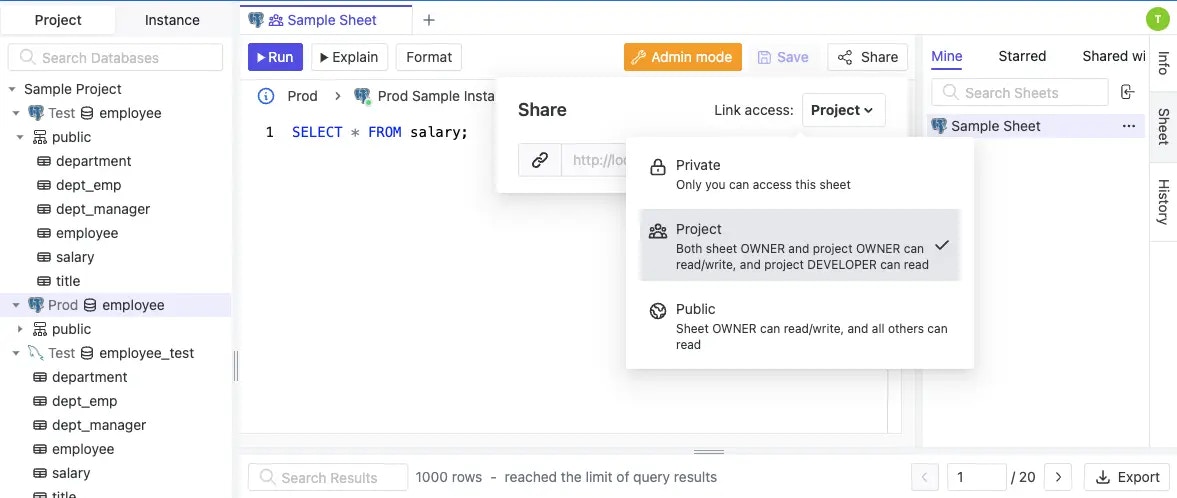 To share a sheet, click **Copy** button to copy the sharing link to the clipboard.
 ## Manage sheet
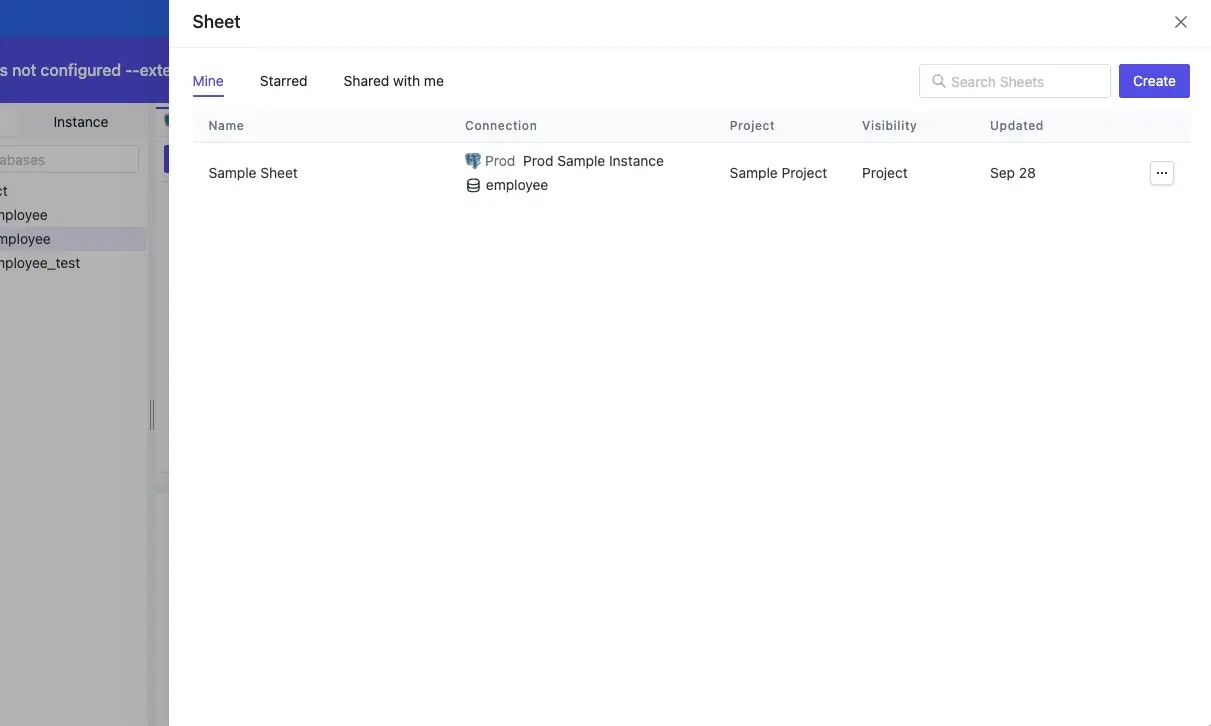
You can manage sheets in the **Sheets** panel on the top left side of the page. You can find all
created sheets, sheets others shared with you and star sheets.
## Manage sheet
You can manage sheets in the **Sheets** panel on the top left side of the page. You can find all
created sheets, sheets others shared with you and star sheets.