> ## Documentation Index
> Fetch the complete documentation index at: https://docs.bytebase.com/llms.txt
> Use this file to discover all available pages before exploring further.
# Database GitOps with GitHub Actions
This is part of our database GitOps series with Bytebase:
* Database GitOps with GitHub Actions (this one)
* [Database GitOps with Azure DevOps Pipeline](/tutorials/gitops-azure-devops-workflow)
* [Database GitOps with GitLab CI](/tutorials/gitops-gitlab-workflow)
* [Database GitOps with Bitbucket Pipelines](/tutorials/gitops-bitbucket-workflow)
***
This tutorial shows you how to build an database GitOps workflow using GitHub Actions and Bytebase API. You'll learn to:
1. Create a streamlined database release workflow where you can:
* Submit schema migrations through GitHub
* Automatically run SQL reviews on pull requests
* Auto-create and deploy Bytebase releases when merging to `main`
2. Manually control rollouts by stage
3. Deploy changes via ChatOps-style PR comments
While we use PostgreSQL with GitHub Actions in this guide, you can apply these concepts to other SQL or NoSQL databases with any CI platforms like GitLab CI, Bitbucket Pipelines, or Azure DevOps using the Bytebase API.
## Repository
[https://github.com/bytebase/example-gitops-github-flow](https://github.com/bytebase/example-gitops-github-flow)
## Prerequisites
* A Bytebase instance (Bytebase Cloud or self-hosted)
* For self-hosted version, you need [Docker](https://www.docker.com/) to run Bytebase.
## Automatic Rollout across environments
### Step 1 - Set up Bytebase
Use [Bytebase Cloud](https://cloud.bytebase.com/) for instant setup without infrastructure management. CI/CD services can connect immediately.
**Best for:** Quick testing, evaluation, and small teams
Run Bytebase in Docker within your infrastructure:
```bash theme={null}
docker run --rm --init \
--name bytebase \
--publish 8080:8080 --pull always \
--volume ~/.bytebase/data:/var/opt/bytebase \
bytebase/bytebase:latest
```
**Network Access Options:**
* **For testing:** Use tools such as [ngrok](https://ngrok.com/) or [VS Code port forwarding](https://code.visualstudio.com/docs/editor/port-forwarding) to temporarily expose your local Bytebase to cloud CI/CD services. After exposing, configure the **External URL** in Bytebase **Settings > General**.
* **For production:** Use self-hosted CI/CD runners within your private network. Never expose production Bytebase to the internet.
**Best for:** Organizations with security requirements or existing infrastructure
See [Network Architecture guide](/get-started/self-host/network-architecture#2-self-hosted-bytebase-production).
### Step 2 - Create Service Account
1. Log in as `Workspace Admin`, and go to **IAM & Admin** > **Users & Groups**. Click **+ Add User**, fill in with `api-sample`, and assign the `Workspace Member` and `GitOps Service Agent` roles, which are sufficient for this tutorial, then click **Confirm**.
2. Find the newly created service account and **Copy Service Key**. We will use this token to authenticate the API calls.
 ### Step 3 - Configure SQL Review in Bytebase
Since you will need to run SQL review on your PRs, you need to configure the SQL review in Bytebase.
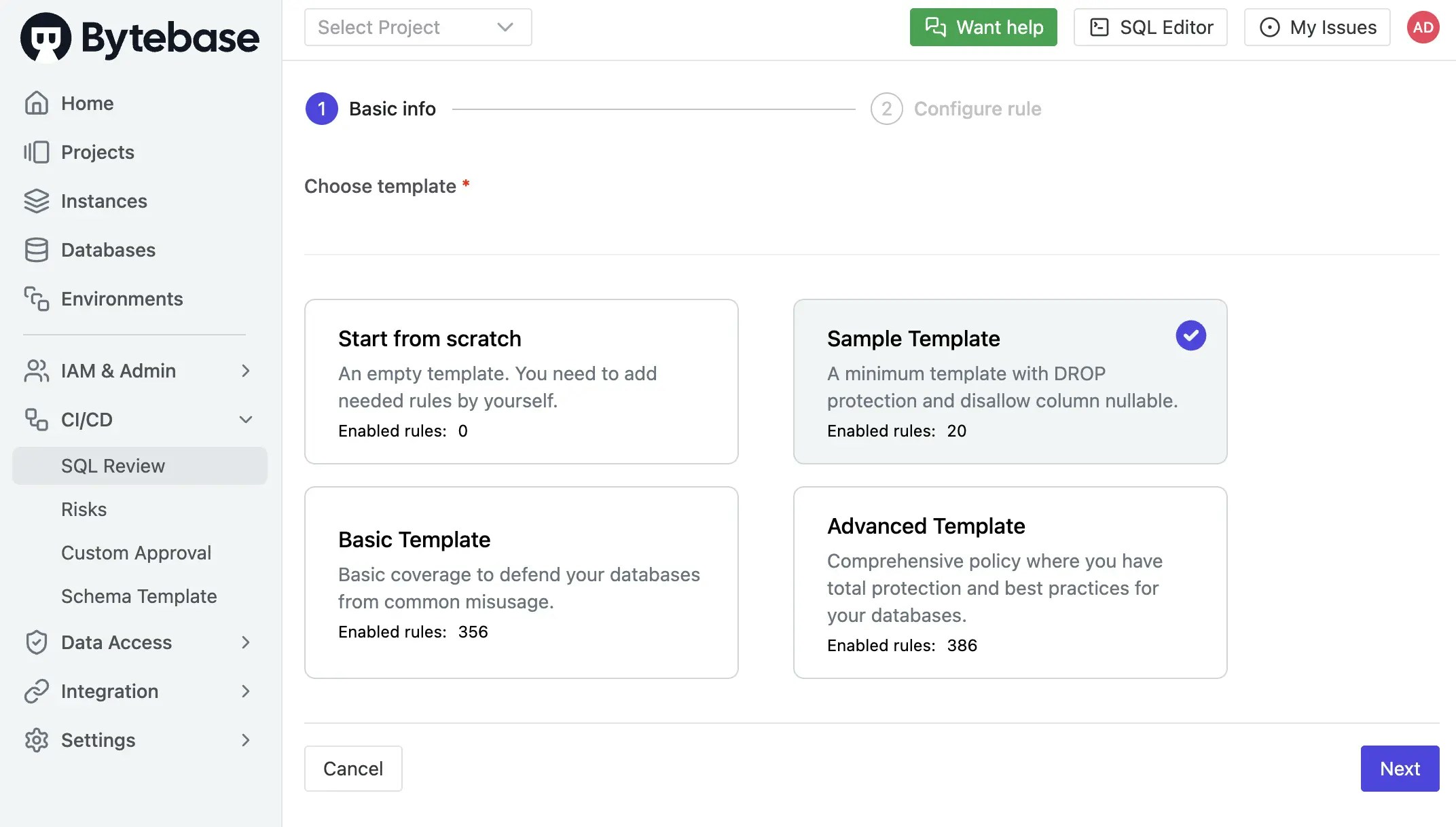
1. Go to **CI/CD** > **SQL Review**, click **Create SQL Review**.
2. Select the `Sample Template` and click **Next**.
### Step 3 - Configure SQL Review in Bytebase
Since you will need to run SQL review on your PRs, you need to configure the SQL review in Bytebase.
1. Go to **CI/CD** > **SQL Review**, click **Create SQL Review**.
2. Select the `Sample Template` and click **Next**.
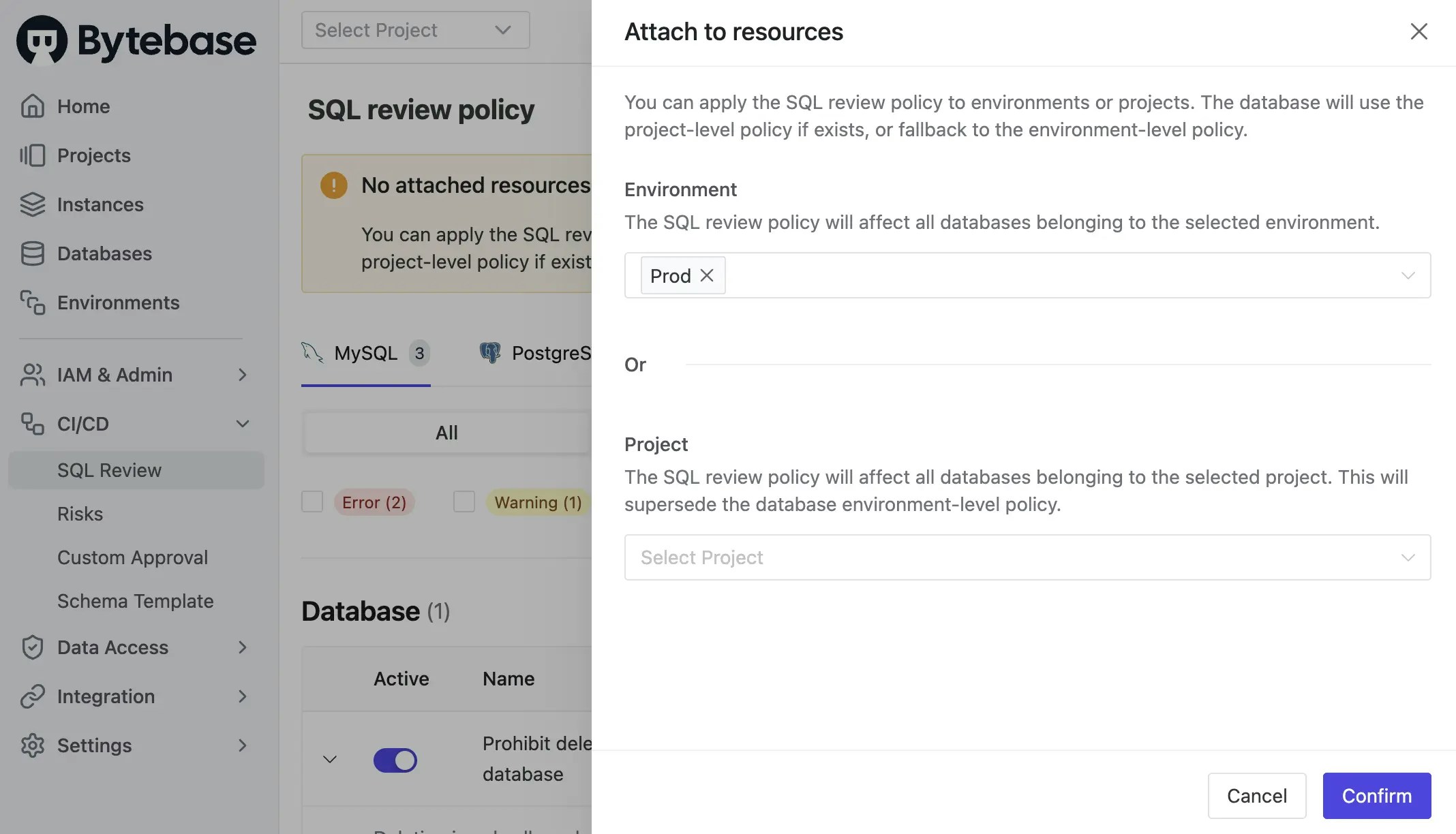
 3. Select `Prod` environment as the attached resources and click **Confirm**. Now the SQL review is enabled for the `Prod` environment.
 ### Step 4 - Fork the Example Repository and Configure Variables
1. Fork [https://github.com/bytebase/example-gitops-github-flow](https://github.com/bytebase/example-gitops-github-flow). There are three workflows in this repository for this tutorial:
* `.github/workflows/sql-review-action.yml`: [Lint the SQL](/sql-review/review-policy/) migration files after the PR is created.
* `.github/workflows/release-action.yml`: Create a release in Bytebase after the PR is merged to the `main` branch.
* `.github/workflows/chatops-migrate.yml`: Deploy changes to specific environments via PR comments using `/migrate` command.
2. Go into `.github/workflows/release-action.yml` and `.github/workflows/sql-review-action.yml`. In the `env` section, replace the variable values with your own and commit the changes.
* **BYTEBASE\_URL**: Your Bytebase instance URL (e.g., `https://bytebase.your-company.com` or your Bytebase Cloud URL)
* **BYTEBASE\_SERVICE\_ACCOUNT**: `api-example@service.bytebase.com` (the service account you created in the previous step)
* **BYTEBASE\_PROJECT**: `projects/project-sample` (the sample project in the Bytebase)
* **BYTEBASE\_TARGETS**: `instances/test-sample-instance/databases/hr_test,instances/prod-sample-instance/databases/hr_prod` (the two default databases in the sample project)
* **FILE\_PATTERN**: `migrations-semver/*.sql` (the pattern of the migration files)
The workflows run `bytebase-action check` and `bytebase-action rollout`, which verify
version compatibility before executing. For Bytebase Cloud, use
`bytebase/bytebase-action:cloud`; for self-hosted Bytebase, use the image tag matching
your Bytebase server version, for example `bytebase/bytebase-action:3.14.0`.
3. You may paste the password of the service account you created in the previous step directly after **service-secret** or keep the **service-secret** value as `${{secrets.BYTEBASE_SERVICE_ACCOUNT_SECRET}}`. Go to **Settings > Secrets and Variables > Actions**, click **New repository secret**, and add **BYTEBASE\_SERVICE\_ACCOUNT\_SECRET**.
4. In `.github/workflows/sql-review-action.yml`, the **`GITHUB_TOKEN`** (`${{ secrets.GITHUB_TOKEN }}`) is included to allow the workflow to comment on pull requests with the `Check release` results. You don’t need to configure it manually — GitHub provides it automatically during workflow execution.
5. Go to **Actions** tab, enable actions workflow run.
### Step 5 - Create the migration files
To create migration files to trigger release creation, the files have to match the following pattern:
* A migration file should start with digits, which is also its version. e.g. `202503131500_create_table_t1_ddl.sql`, you can also use semantic versioning like `1.0.0_create_table_t1_ddl.sql`.
* A migration file may end with 'ddl' or 'dml' to indicate its change type. If it doesn't end with any of the two, its change type is DDL by default.
1. Within your forked repository, create the following migration files under `migrations` directory:
* 202503131500\_create\_table\_t1\_ddl.sql
```sql theme={null}
CREATE TABLE t1 (
id SERIAL PRIMARY KEY,
name TEXT
);
```
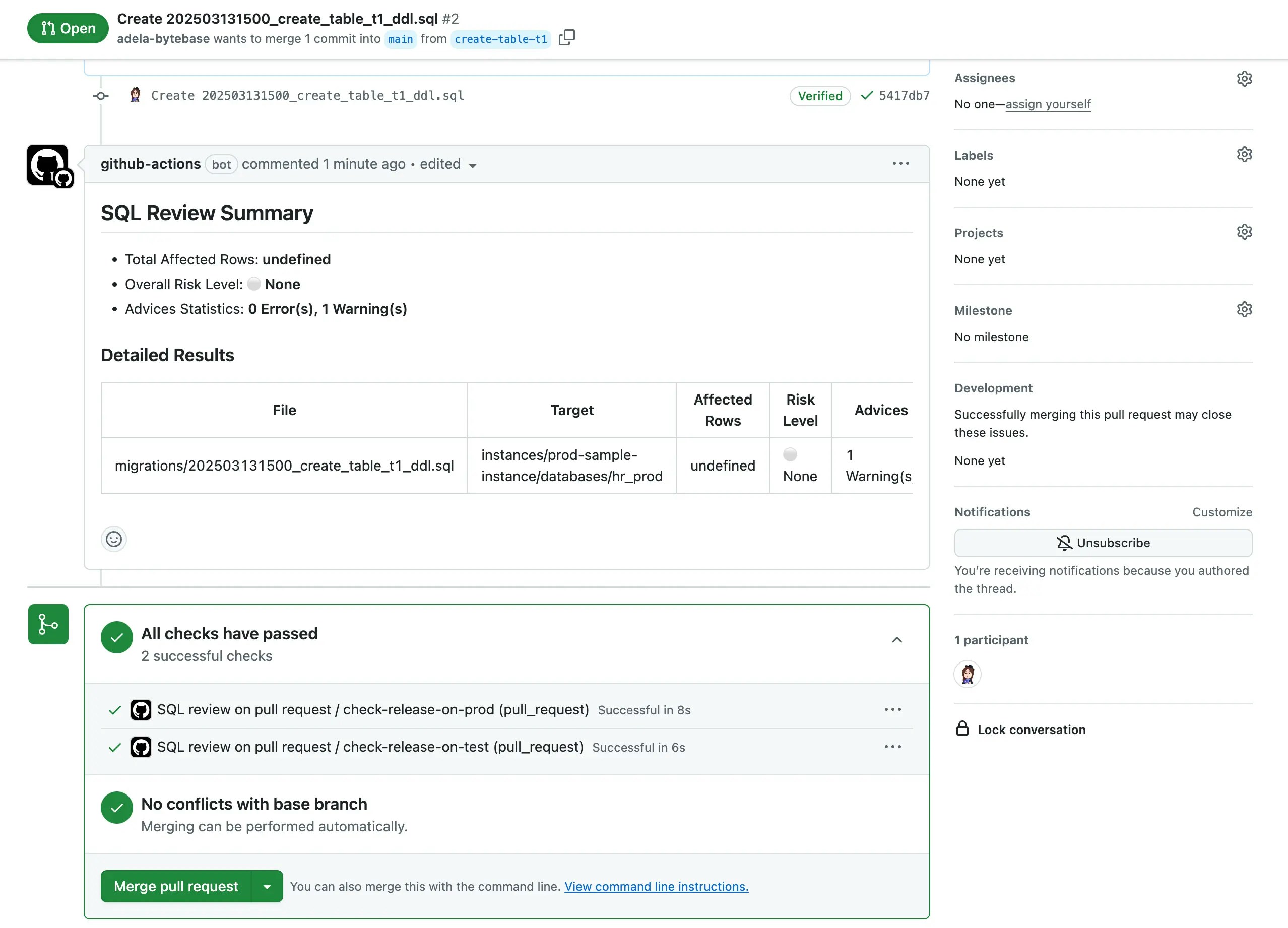
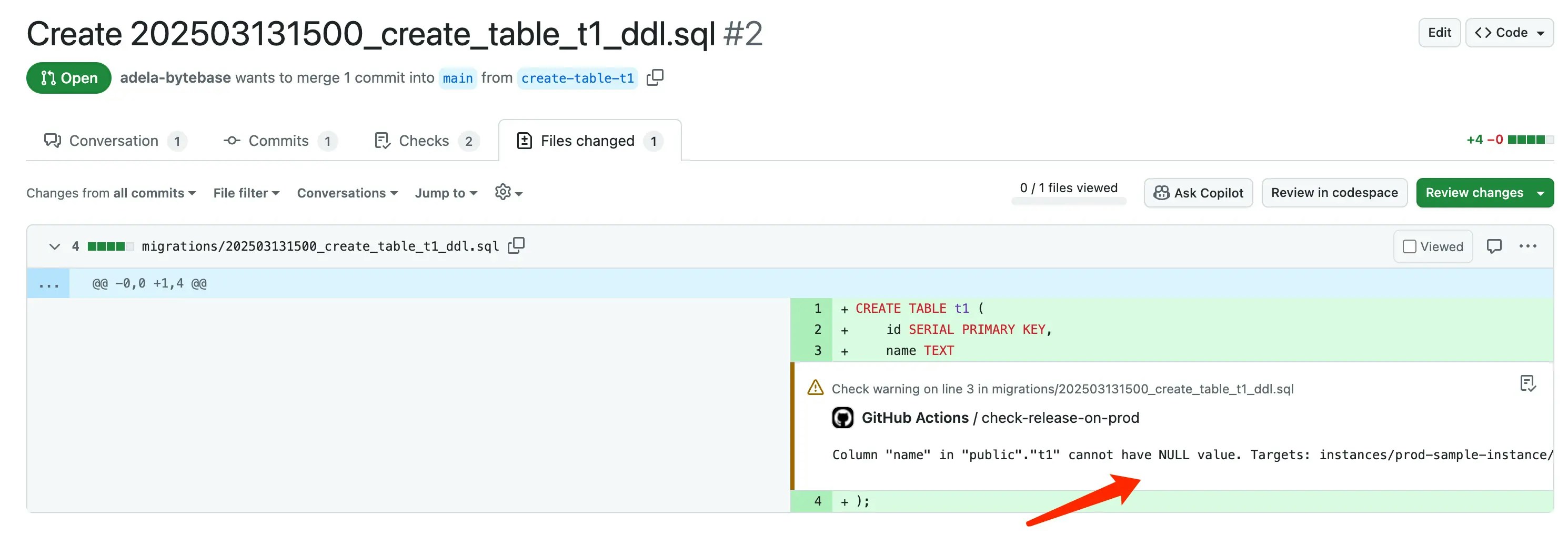
2. Commit to a new branch and create a pull request, the `sql-review-action` workflow will be triggered. There will be a warning in the SQL review result. Go into the **File changes** tab, you can see the warning.
### Step 4 - Fork the Example Repository and Configure Variables
1. Fork [https://github.com/bytebase/example-gitops-github-flow](https://github.com/bytebase/example-gitops-github-flow). There are three workflows in this repository for this tutorial:
* `.github/workflows/sql-review-action.yml`: [Lint the SQL](/sql-review/review-policy/) migration files after the PR is created.
* `.github/workflows/release-action.yml`: Create a release in Bytebase after the PR is merged to the `main` branch.
* `.github/workflows/chatops-migrate.yml`: Deploy changes to specific environments via PR comments using `/migrate` command.
2. Go into `.github/workflows/release-action.yml` and `.github/workflows/sql-review-action.yml`. In the `env` section, replace the variable values with your own and commit the changes.
* **BYTEBASE\_URL**: Your Bytebase instance URL (e.g., `https://bytebase.your-company.com` or your Bytebase Cloud URL)
* **BYTEBASE\_SERVICE\_ACCOUNT**: `api-example@service.bytebase.com` (the service account you created in the previous step)
* **BYTEBASE\_PROJECT**: `projects/project-sample` (the sample project in the Bytebase)
* **BYTEBASE\_TARGETS**: `instances/test-sample-instance/databases/hr_test,instances/prod-sample-instance/databases/hr_prod` (the two default databases in the sample project)
* **FILE\_PATTERN**: `migrations-semver/*.sql` (the pattern of the migration files)
The workflows run `bytebase-action check` and `bytebase-action rollout`, which verify
version compatibility before executing. For Bytebase Cloud, use
`bytebase/bytebase-action:cloud`; for self-hosted Bytebase, use the image tag matching
your Bytebase server version, for example `bytebase/bytebase-action:3.14.0`.
3. You may paste the password of the service account you created in the previous step directly after **service-secret** or keep the **service-secret** value as `${{secrets.BYTEBASE_SERVICE_ACCOUNT_SECRET}}`. Go to **Settings > Secrets and Variables > Actions**, click **New repository secret**, and add **BYTEBASE\_SERVICE\_ACCOUNT\_SECRET**.
4. In `.github/workflows/sql-review-action.yml`, the **`GITHUB_TOKEN`** (`${{ secrets.GITHUB_TOKEN }}`) is included to allow the workflow to comment on pull requests with the `Check release` results. You don’t need to configure it manually — GitHub provides it automatically during workflow execution.
5. Go to **Actions** tab, enable actions workflow run.
### Step 5 - Create the migration files
To create migration files to trigger release creation, the files have to match the following pattern:
* A migration file should start with digits, which is also its version. e.g. `202503131500_create_table_t1_ddl.sql`, you can also use semantic versioning like `1.0.0_create_table_t1_ddl.sql`.
* A migration file may end with 'ddl' or 'dml' to indicate its change type. If it doesn't end with any of the two, its change type is DDL by default.
1. Within your forked repository, create the following migration files under `migrations` directory:
* 202503131500\_create\_table\_t1\_ddl.sql
```sql theme={null}
CREATE TABLE t1 (
id SERIAL PRIMARY KEY,
name TEXT
);
```
2. Commit to a new branch and create a pull request, the `sql-review-action` workflow will be triggered. There will be a warning in the SQL review result. Go into the **File changes** tab, you can see the warning.
 3. According to the SQL review result, you can do some changes to the SQL files and push to the branch. Then you should see the SQL review has passed. There are no warnings in the SQL review result.
```sql theme={null}
CREATE TABLE t1 (
id SERIAL PRIMARY KEY,
name TEXT NOT NULL
);
```
3. According to the SQL review result, you can do some changes to the SQL files and push to the branch. Then you should see the SQL review has passed. There are no warnings in the SQL review result.
```sql theme={null}
CREATE TABLE t1 (
id SERIAL PRIMARY KEY,
name TEXT NOT NULL
);
```
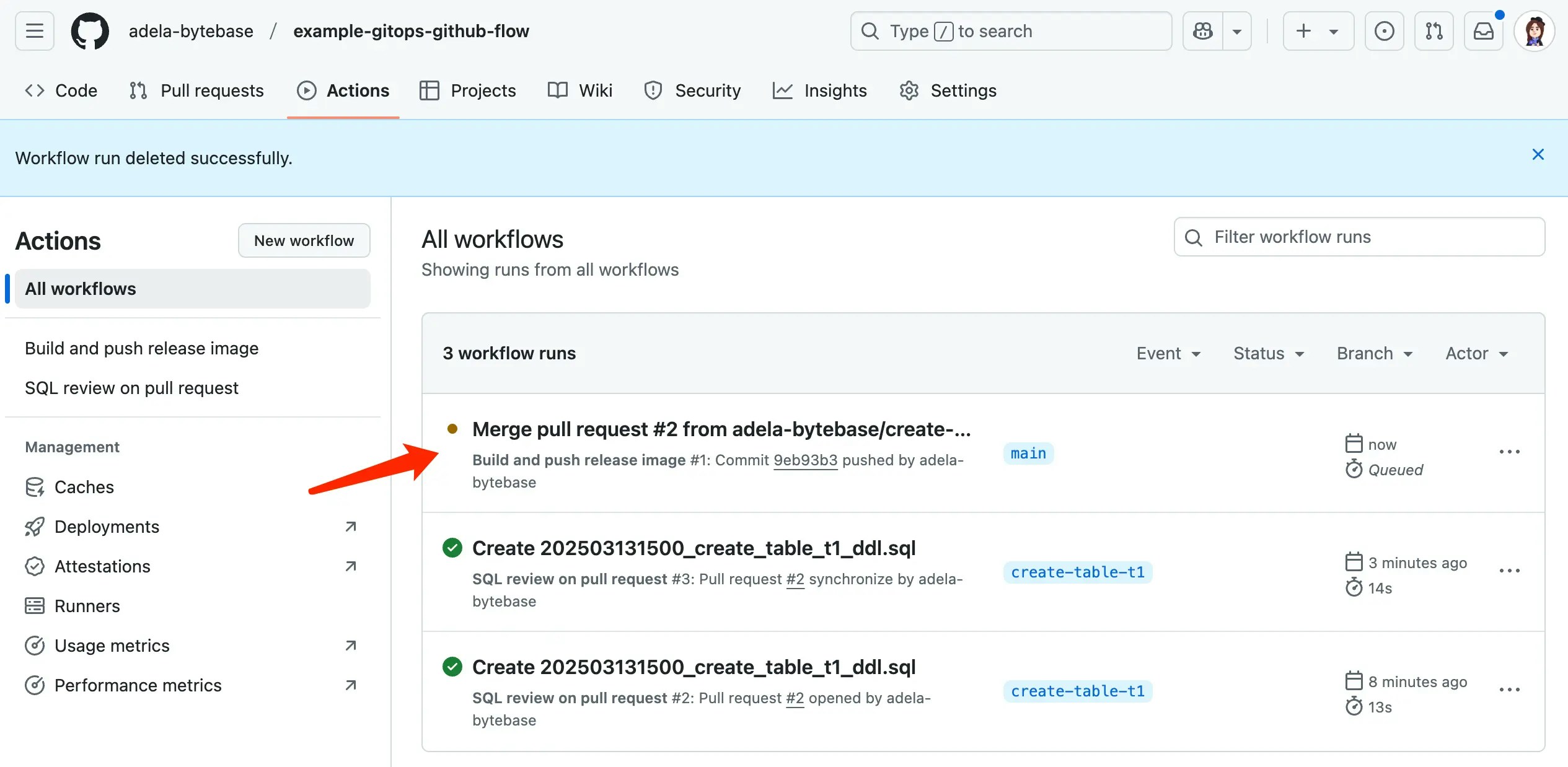
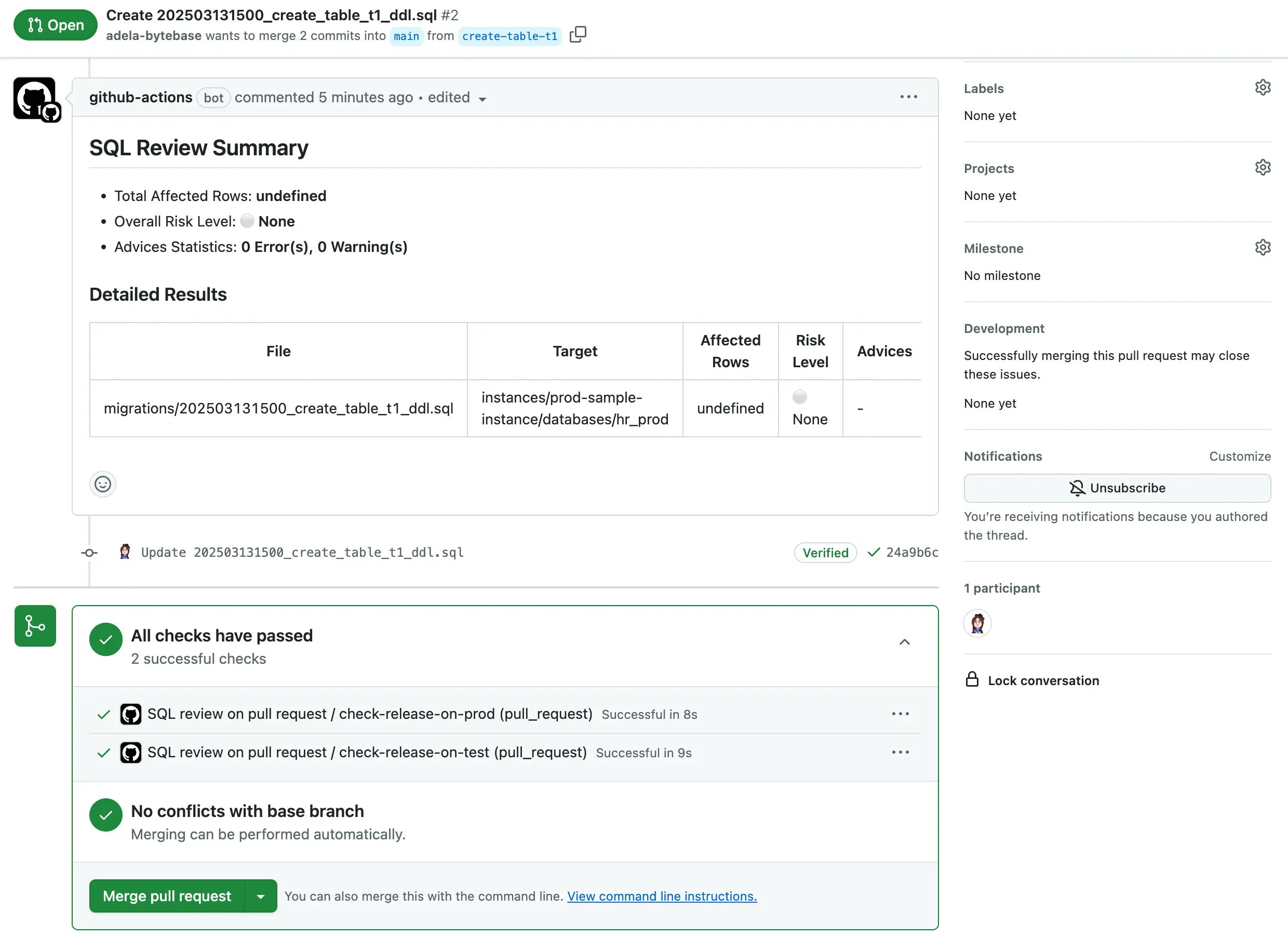 4. When the SQL review is passed, you can merge the pull request. The `release-action` workflow will be triggered to create a **release** in Bytebase and then deploy automatically. Go to **Actions** tab, you can see the workflow run and pass.
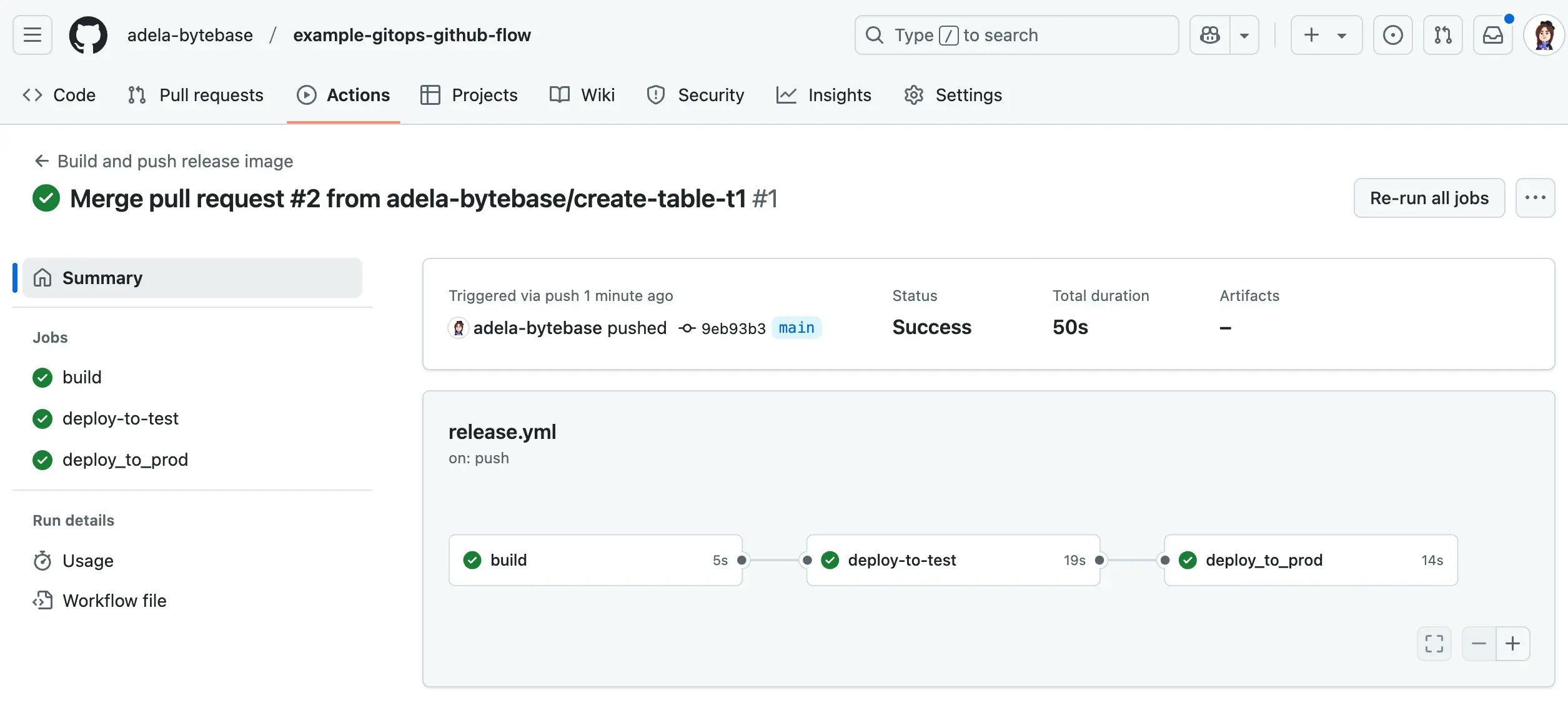
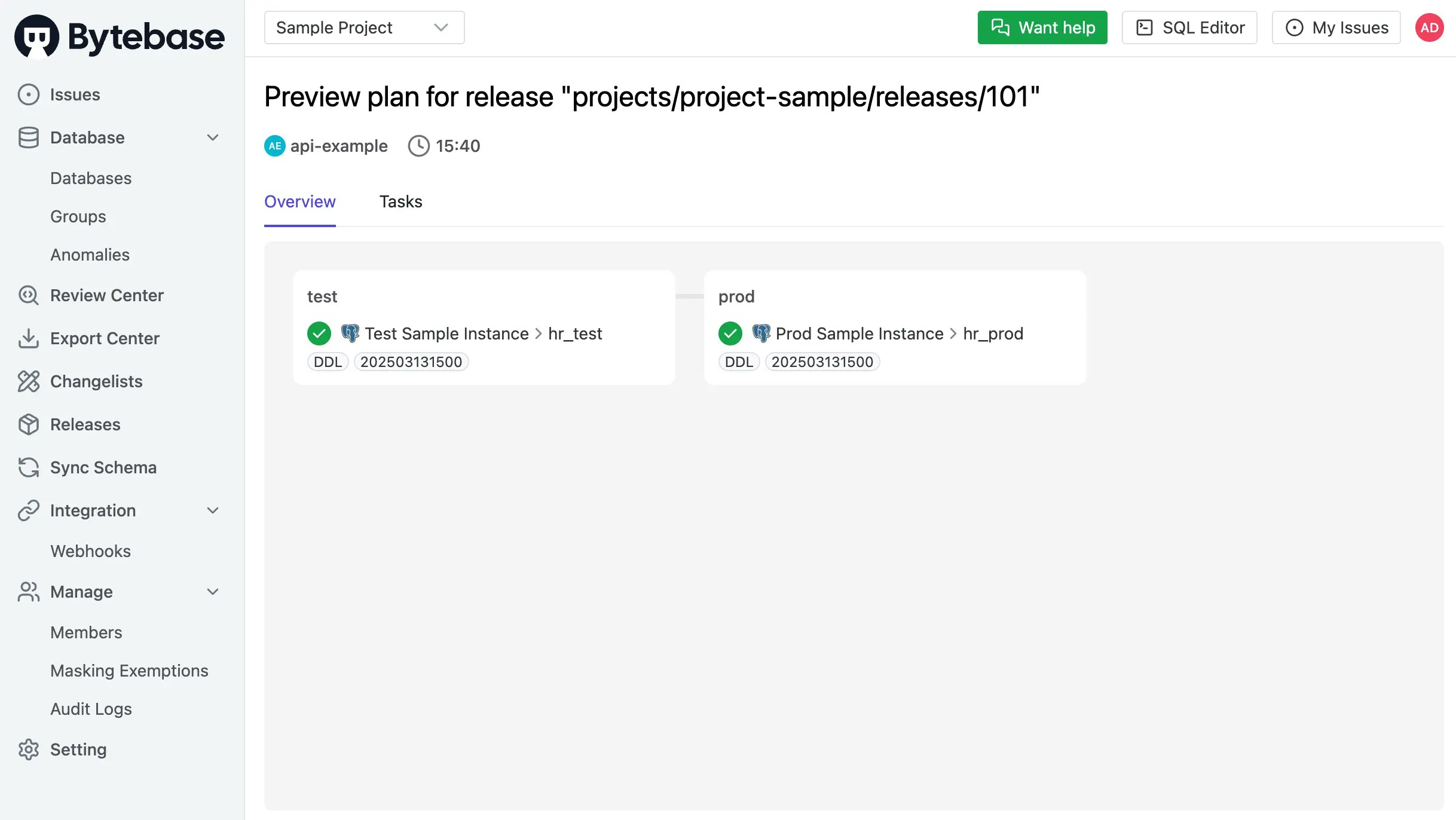
 5. Click into the workflow run, you can see the release is created in Bytebase and the rollout is applied to the databases automatically.
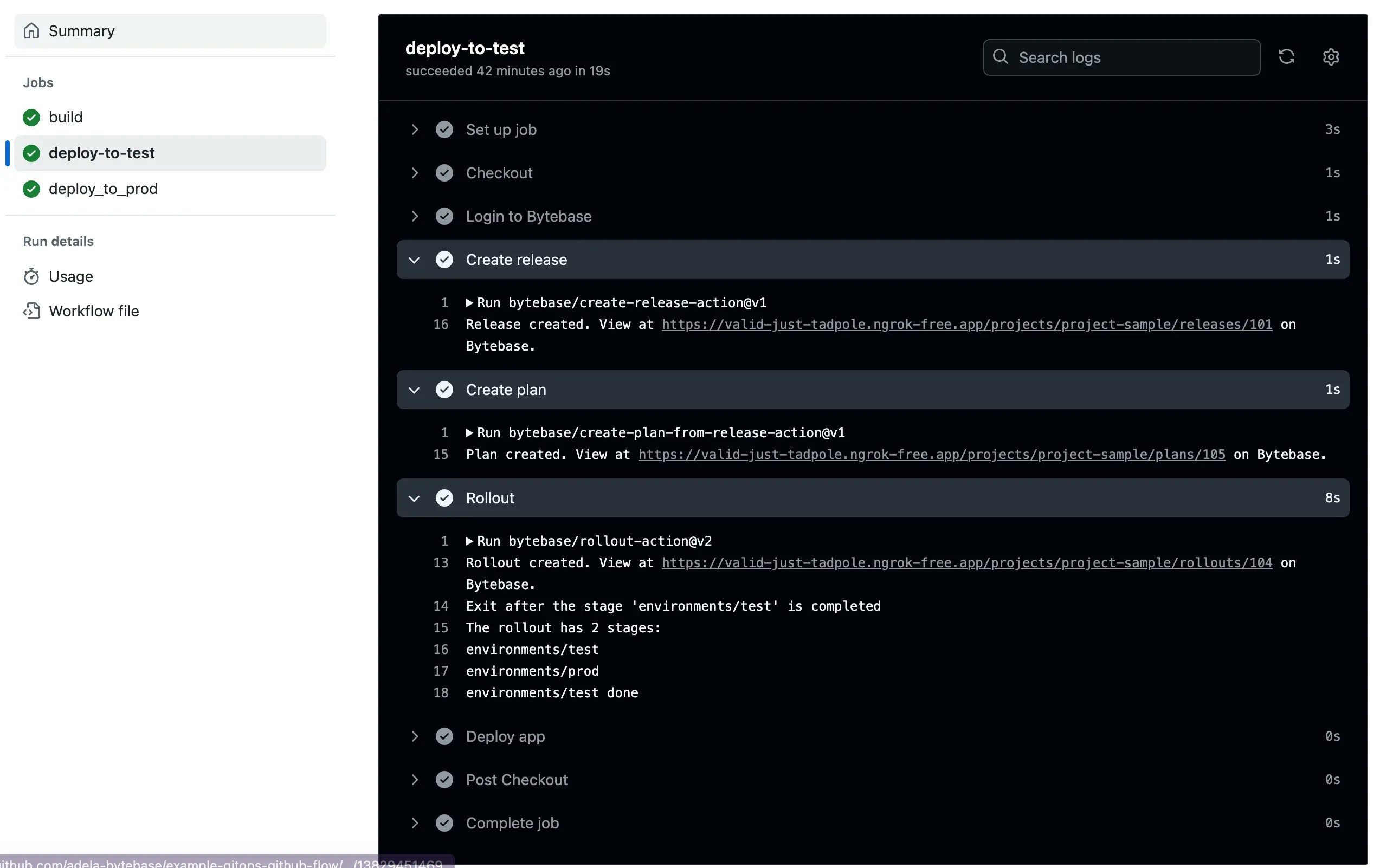
 6. If you click the test stage and expand the different sections, you can follow the links to Bytebase.
 ## Manual Rollout by Environment
In the previous section, once the PR is merged, we create a release and deploy it to both test and prod environments automatically.
You can also manually control the rollout by stage.
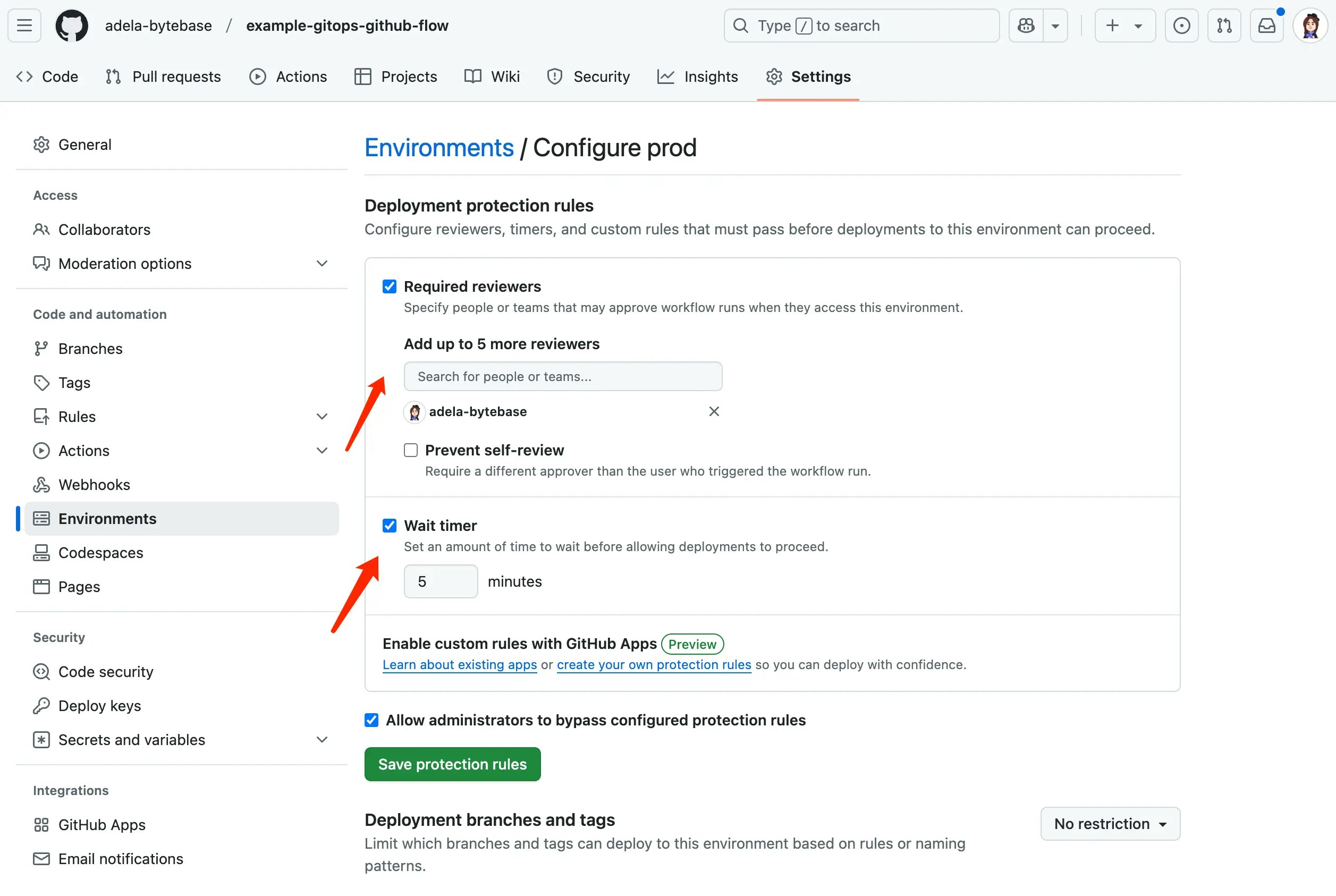
1. In the repo, click **Settings** > **Environments**, choose **Prod**. Here you can add **required reviewers** for the stage and also set **wait timer**.
## Manual Rollout by Environment
In the previous section, once the PR is merged, we create a release and deploy it to both test and prod environments automatically.
You can also manually control the rollout by stage.
1. In the repo, click **Settings** > **Environments**, choose **Prod**. Here you can add **required reviewers** for the stage and also set **wait timer**.
 2. Create a new branch with this file, and create a pull request. Merge it to the `main` branch.
* 202503131530\_create\_table\_t2\_ddl.sql
```sql theme={null}
CREATE TABLE t2 (
id SERIAL PRIMARY KEY,
name TEXT NOT NULL
);
```
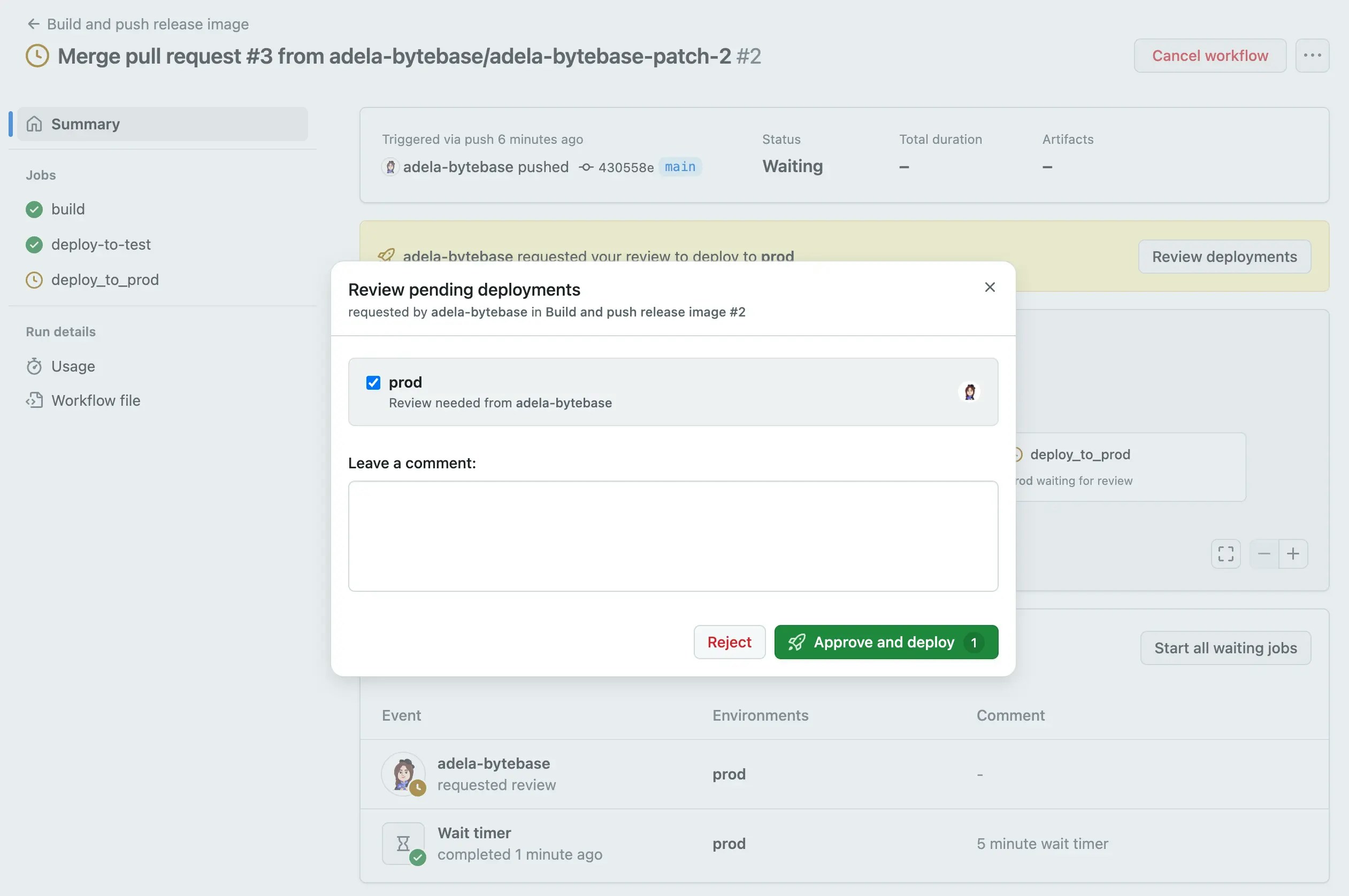
3. Go to the **Actions** tab, you can see the workflow run and stop at the Prod stage.
2. Create a new branch with this file, and create a pull request. Merge it to the `main` branch.
* 202503131530\_create\_table\_t2\_ddl.sql
```sql theme={null}
CREATE TABLE t2 (
id SERIAL PRIMARY KEY,
name TEXT NOT NULL
);
```
3. Go to the **Actions** tab, you can see the workflow run and stop at the Prod stage.
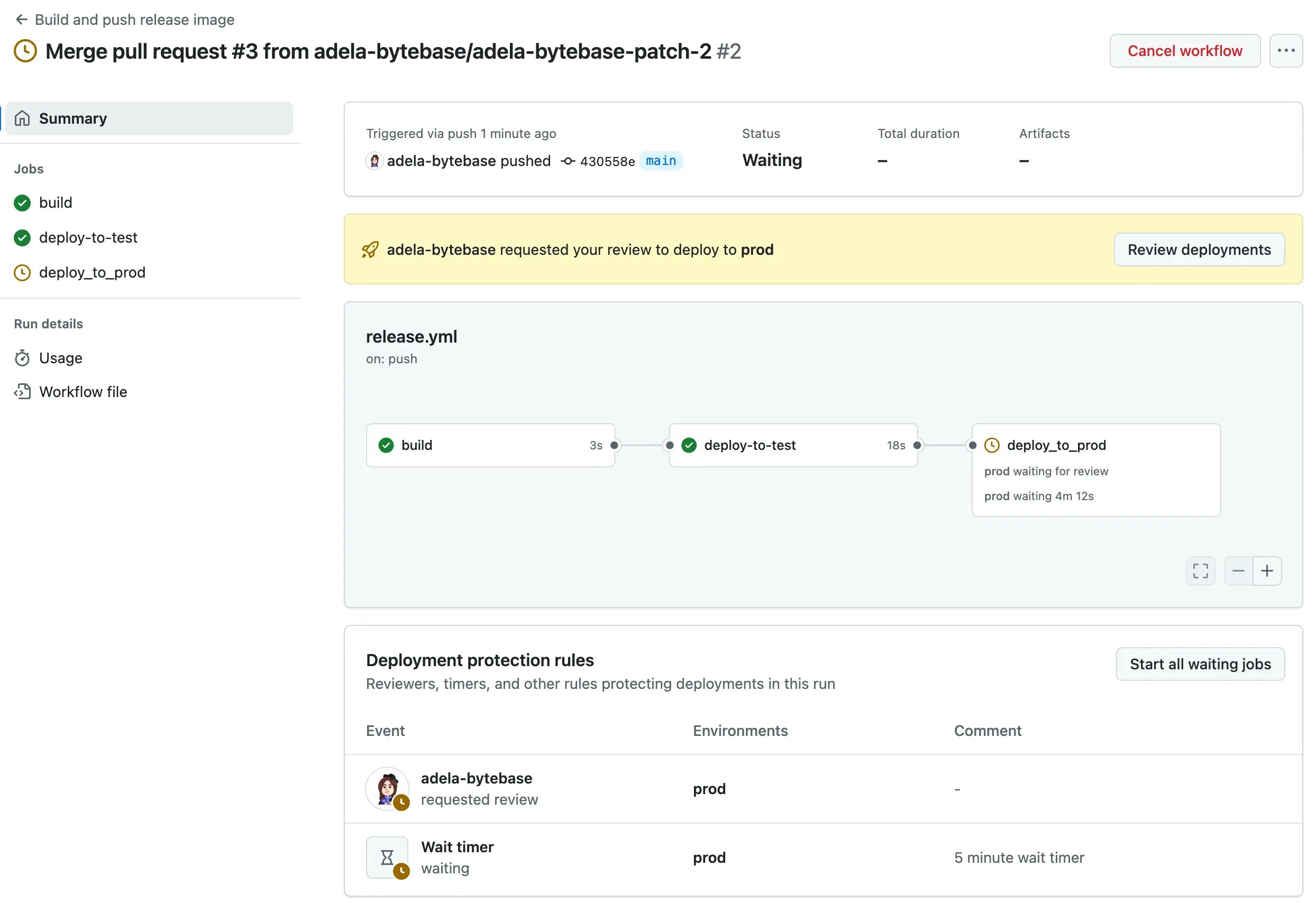 4. Wait for 5 minutes, the workflow will wait for the required reviewers to approve.
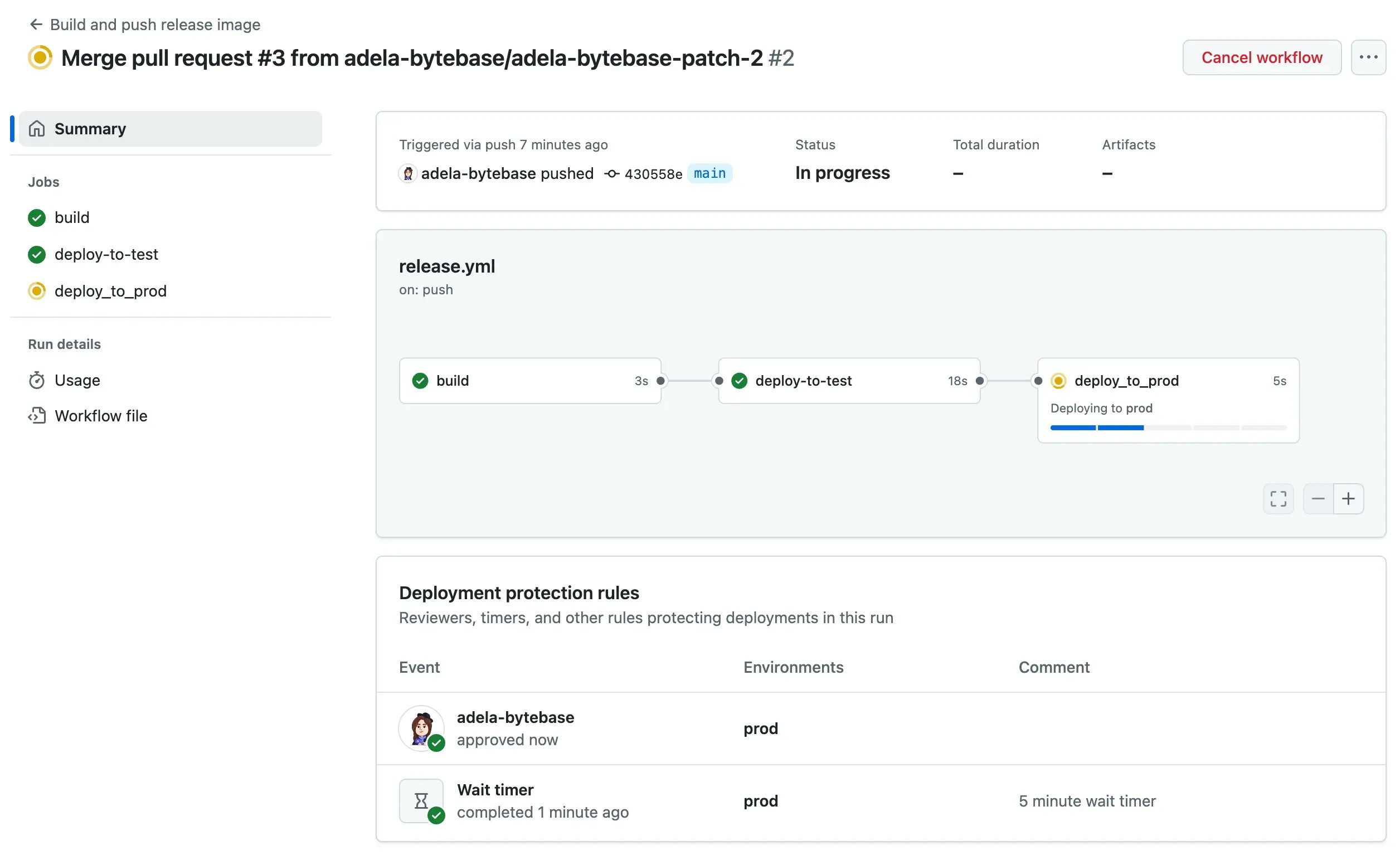
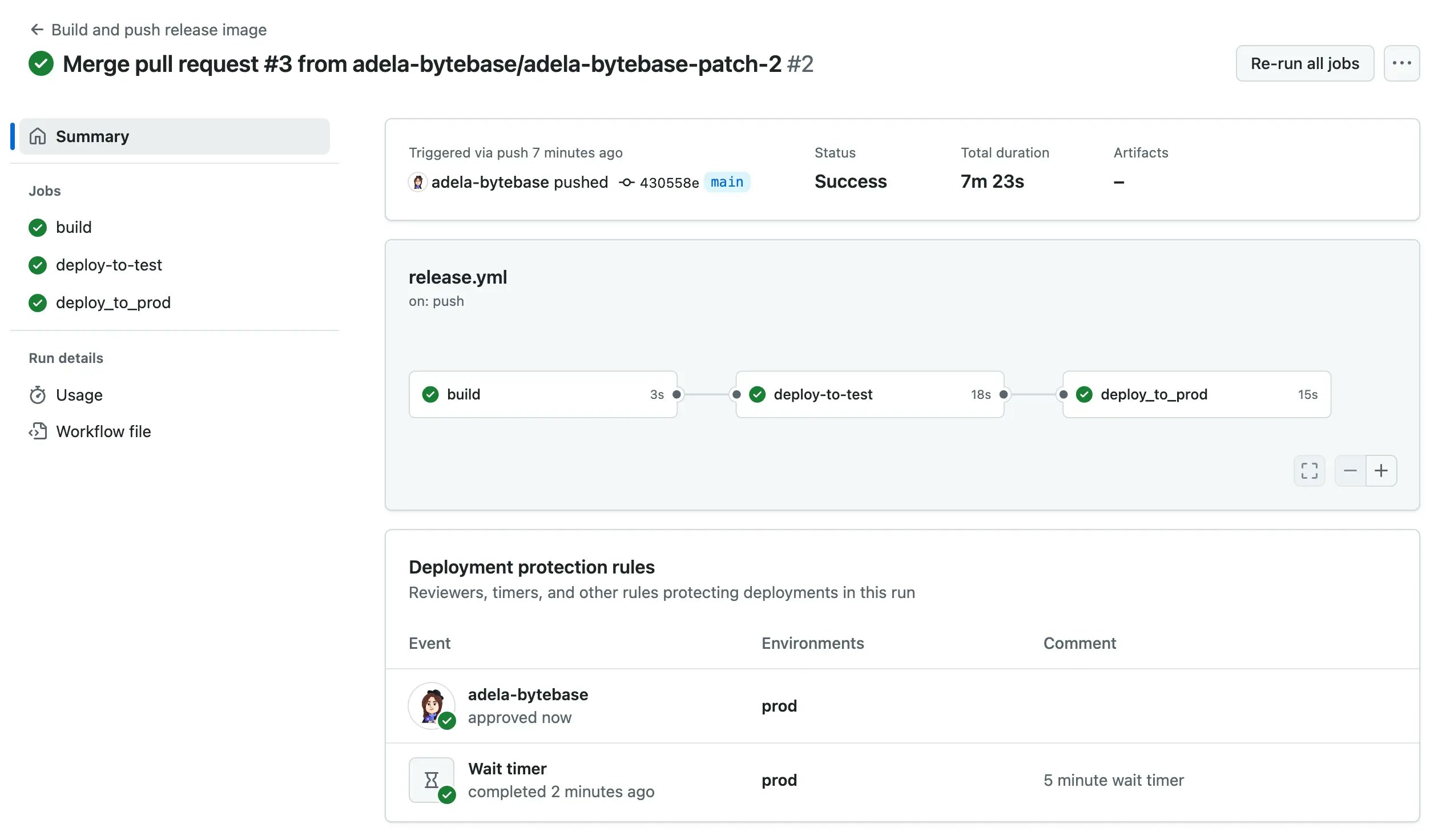
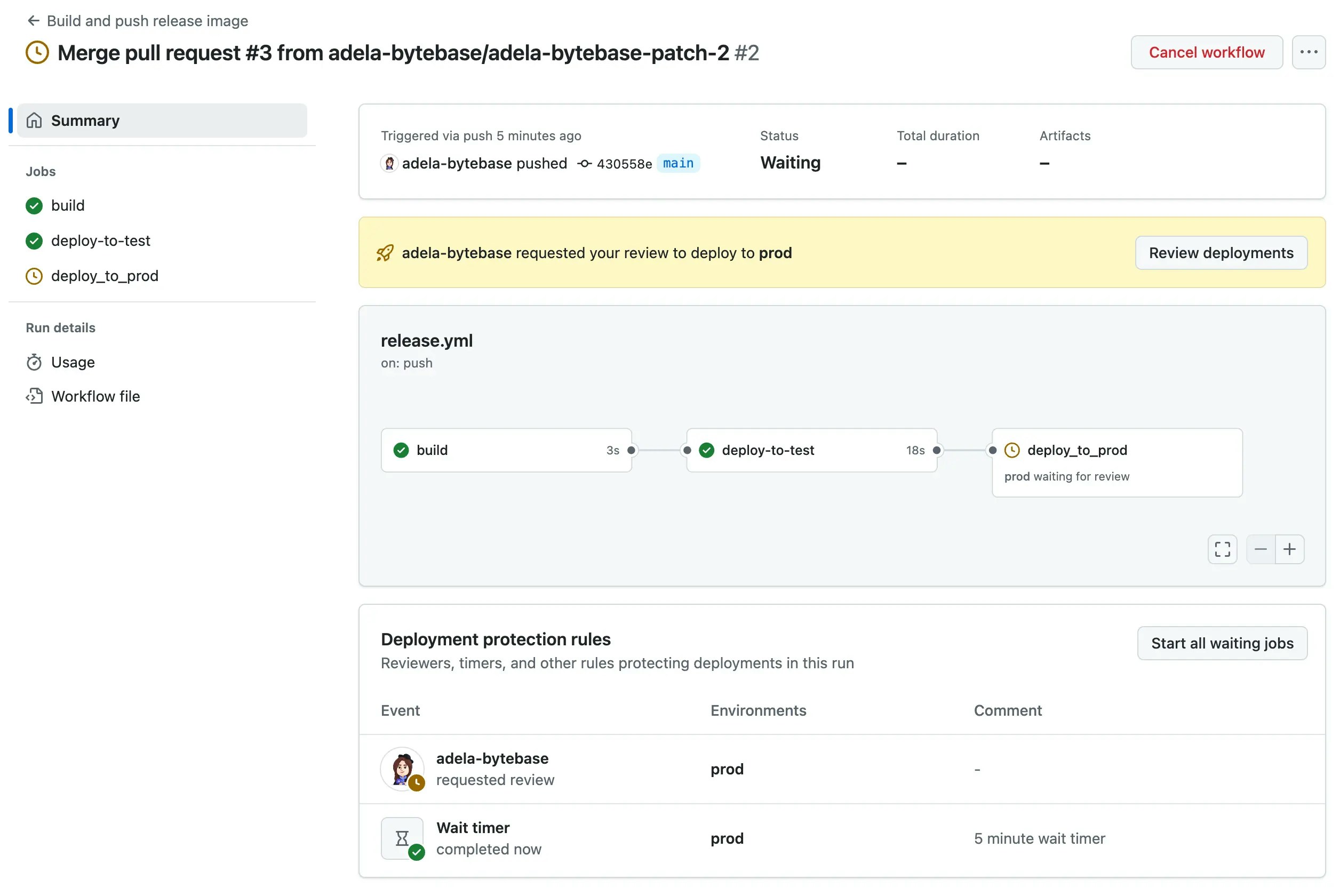 5. Click **Approve and deploy** button, the workflow will continue to rollout to the Prod stage.
 ## ChatOps Deployment via PR Comments
In addition to automatic and manual deployments, you can also deploy database changes to any environment directly from pull request comments using ChatOps commands.
Team members can trigger deployments by commenting `/migrate ` on any pull request. The workflow will:
1. Validate the command and environment
2. Create a rollout plan in Bytebase
3. Execute the migration to the specified environment
4. Report the results back in the PR comments
### Step 1 - Configure ChatOps Workflow
1. Go into `.github/workflows/chatops-migrate.yml`. In the `env` section, replace the variable values with your own:
* **BYTEBASE\_URL**: Your Bytebase instance URL (e.g., `https://bytebase.your-company.com` or your Bytebase Cloud URL)
* **BYTEBASE\_SERVICE\_ACCOUNT**: `api-example@service.bytebase.com`
* **BYTEBASE\_PROJECT**: `projects/project-sample`
* **FILE\_PATTERN**: `migrations-semver/*.sql`
2. In the same workflow file, modify the config generation step to match your environments:
```yml theme={null}
- name: Write command config
run: |
cat < ${{ runner.temp }}/bytebase-action-config.yaml
test:
stage: environments/test
targets:
- instances/test-sample-instance/databases/hr_test
prod:
stage: environments/prod
targets:
- instances/prod-sample-instance/databases/hr_prod
EOF
```
3. Set your service account password in the repository secrets setting with the name `BYTEBASE_SERVICE_ACCOUNT_SECRET`.
4. In **Settings > Environments**, ensure you have environments matching your config (e.g., "test", "prod"). For production, configure deployment protection rules if needed.
### Step 2 - Deploy via PR Comments
1. Create a new branch with this file and create a pull request:
* 1.14.0\_code.sql
```sql theme={null}
ALTER TABLE IF EXISTS users ADD COLUMN IF NOT EXISTS code VARCHAR(255) NOT NULL DEFAULT '';
```
2. After the SQL review passes, comment `/migrate test` on the PR to deploy to test environment.
## ChatOps Deployment via PR Comments
In addition to automatic and manual deployments, you can also deploy database changes to any environment directly from pull request comments using ChatOps commands.
Team members can trigger deployments by commenting `/migrate ` on any pull request. The workflow will:
1. Validate the command and environment
2. Create a rollout plan in Bytebase
3. Execute the migration to the specified environment
4. Report the results back in the PR comments
### Step 1 - Configure ChatOps Workflow
1. Go into `.github/workflows/chatops-migrate.yml`. In the `env` section, replace the variable values with your own:
* **BYTEBASE\_URL**: Your Bytebase instance URL (e.g., `https://bytebase.your-company.com` or your Bytebase Cloud URL)
* **BYTEBASE\_SERVICE\_ACCOUNT**: `api-example@service.bytebase.com`
* **BYTEBASE\_PROJECT**: `projects/project-sample`
* **FILE\_PATTERN**: `migrations-semver/*.sql`
2. In the same workflow file, modify the config generation step to match your environments:
```yml theme={null}
- name: Write command config
run: |
cat < ${{ runner.temp }}/bytebase-action-config.yaml
test:
stage: environments/test
targets:
- instances/test-sample-instance/databases/hr_test
prod:
stage: environments/prod
targets:
- instances/prod-sample-instance/databases/hr_prod
EOF
```
3. Set your service account password in the repository secrets setting with the name `BYTEBASE_SERVICE_ACCOUNT_SECRET`.
4. In **Settings > Environments**, ensure you have environments matching your config (e.g., "test", "prod"). For production, configure deployment protection rules if needed.
### Step 2 - Deploy via PR Comments
1. Create a new branch with this file and create a pull request:
* 1.14.0\_code.sql
```sql theme={null}
ALTER TABLE IF EXISTS users ADD COLUMN IF NOT EXISTS code VARCHAR(255) NOT NULL DEFAULT '';
```
2. After the SQL review passes, comment `/migrate test` on the PR to deploy to test environment.
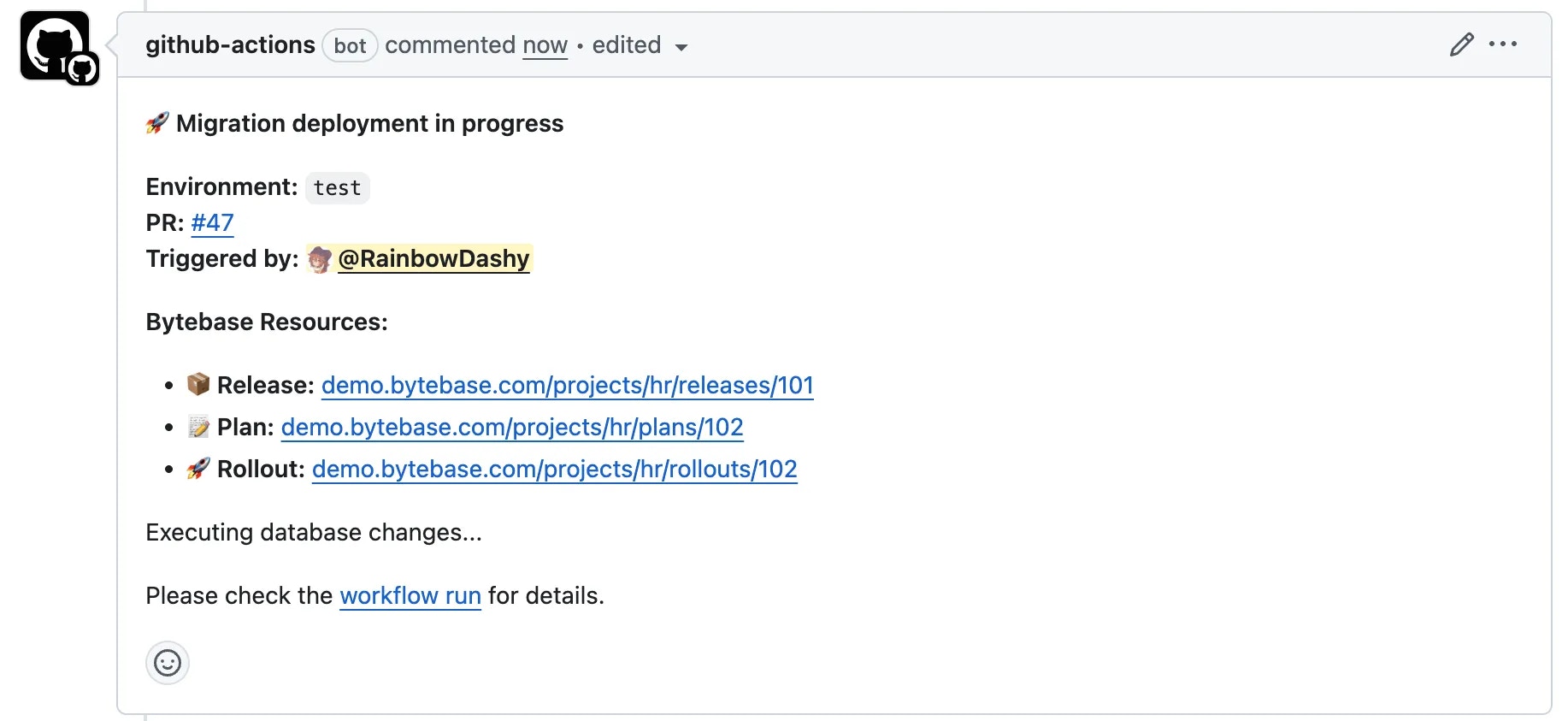
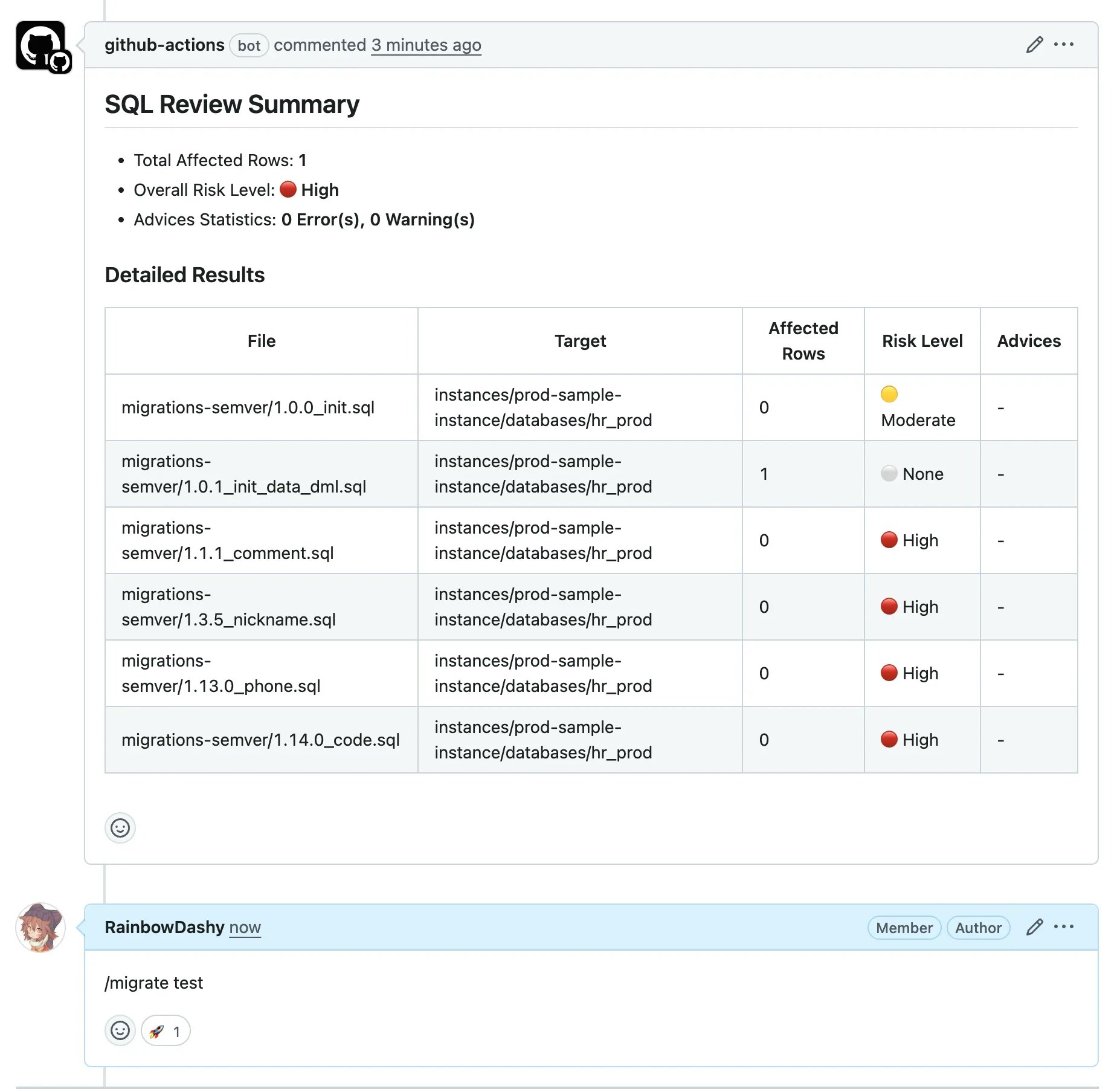 3. The workflow will add a 🚀 reaction and post deployment progress in the PR comments.
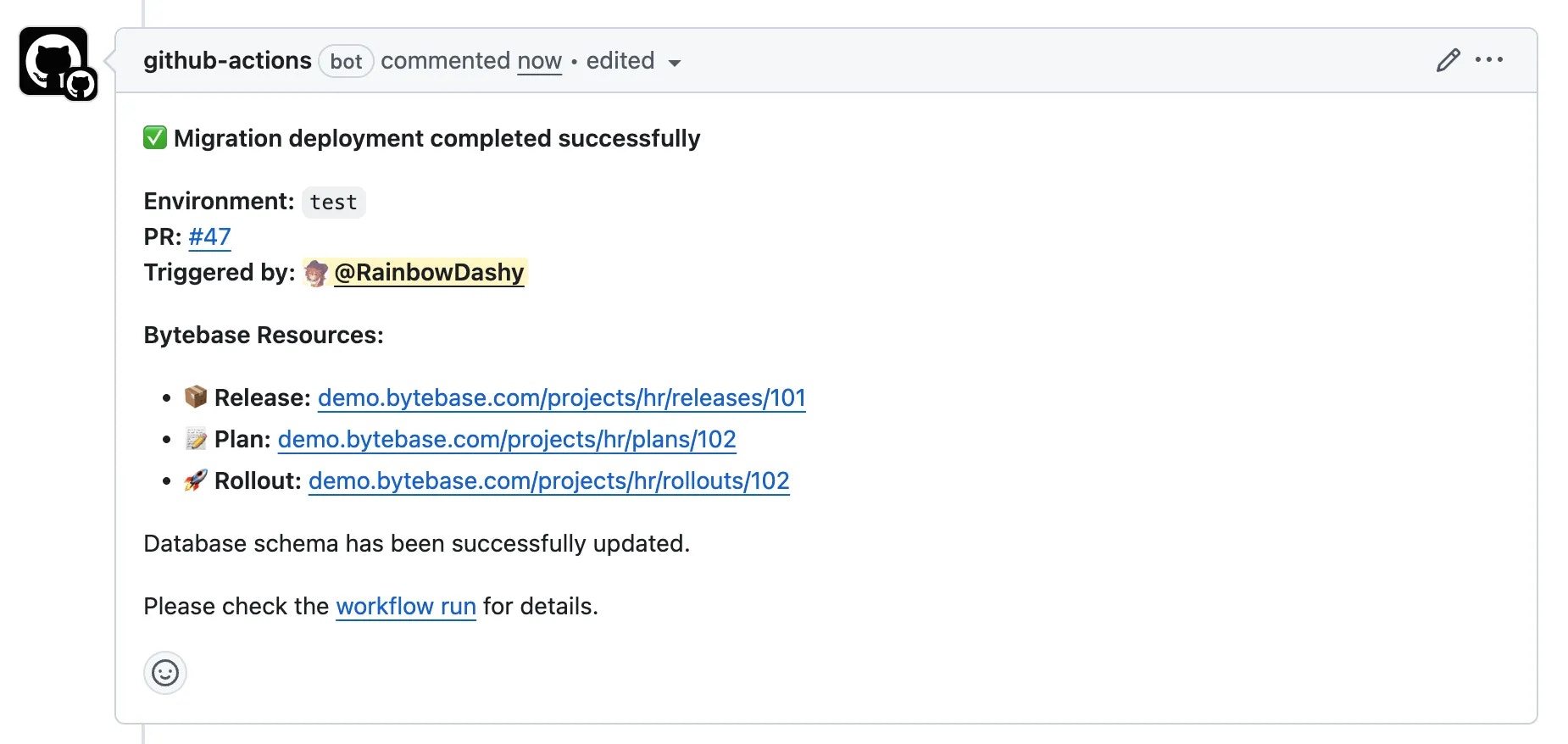
 4. When deployment completes, you'll see a success message with links to Bytebase resources.
 5. To deploy to production, comment `/migrate prod`. If production requires approval, the workflow will wait for reviewers.
## Summary
Now you have learned how to implement database GitOps with GitHub Actions in three ways:
1. **Automatic deployment** after merging to main branch
2. **Manual rollout** with environment-level approval
3. **ChatOps deployment** via PR comments for pre-merge testing
If you want to trigger a release creation with other git providers (e.g. GitLab, Bitbucket, Azure DevOps), you may customize the workflow file.
5. To deploy to production, comment `/migrate prod`. If production requires approval, the workflow will wait for reviewers.
## Summary
Now you have learned how to implement database GitOps with GitHub Actions in three ways:
1. **Automatic deployment** after merging to main branch
2. **Manual rollout** with environment-level approval
3. **ChatOps deployment** via PR comments for pre-merge testing
If you want to trigger a release creation with other git providers (e.g. GitLab, Bitbucket, Azure DevOps), you may customize the workflow file.