Find invalid objects in a SQL Server database
An invalid object is a database object that fails to compile or run due to unresolved dependencies or errors in its definition.
SQL Complete can help you identify invalid objects in SQL databases by using the GUI or the command line.
Find invalid objects using GUI
1. Open SQL Server Management Studio.
2. Open the Find Invalid Objects document in one of these ways:
- On the menu bar, select SQL Complete > Find Invalid Objects.
- In Object Explorer, right-click the required connection or database, then select SQL Complete > Find Invalid Objects.
- Press Ctrl+Alt+F.
3. In the Find Invalid Objects document, specify the connection details:
3.1. In Connection, select the server connection for the databases.
3.2. In Databases, click  , then select one or more databases where you want to find invalid objects.
Tip
To select all databases, click Check All.
To clear the selection, click Uncheck All.
To update the database list, click Refresh.
To find a database, enter a search value in the search box. Matching text is highlighted in yellow.
4. Click Analyze.
Find invalid objects using the command line
1. Open Command Prompt.
2. Navigate to the installation folder of dbForge SQL Complete that contains sqlcomplete.com. The default path to this executable depends on where dbForge SQL Complete is installed. If you installed it:
-
As a standalone product
C:\Program Files\Devart\dbForge SQL Complete. -
As part of dbForge SQL Tools
C:\Program Files\Devart\dbForge SQL Tools\dbForge SQL Complete.
3. Enter the following command:
sqlcomplete.com /findinvalidobjects /connection:"Data Source=<server_name>;Encrypt=True;MultipleActiveResultSets=False;TrustServerCertificate=True;User ID=<user_name>; Password=<password>" /database:<database_name>
where:
<server_name>– The SQL server name.<user_name>– The username to connect to the server.<password>– The password to connect to the server.<database_name>– The name of the database to analyze for invalid objects.

How to manage invalid objects
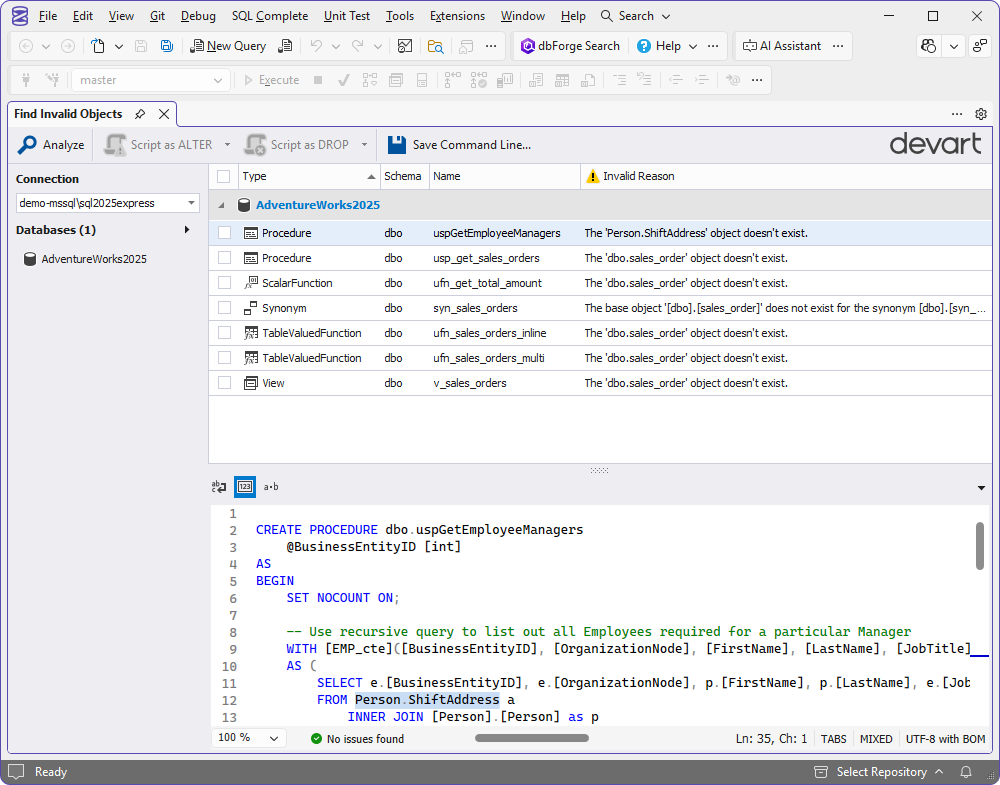
Invalid objects are listed in a grid showing the type of database object, the schema it belongs to, its name, and why it is deemed invalid. The preview pane displays the SQL script generated for the invalid object and highlights the object that caused the selected object to be invalid.

Note
Searching for invalid objects is not supported on Azure SQL servers.
In the Find Invalid Objects grid, you can perform the following tasks:
- Select the invalid objects to view the SQL script generated for the object at the bottom preview pane.
-
Right-click the invalid object and select on the shortcut menu:
- Clear All to remove all invalid objects from the grid.
- Find in Object Explorer to locate the selected invalid object in Object Explorer.
- Export to CSV to store data of all invalid objects as a grid in the CSV file. The grid contains the information available in the Find Invalid Objects grid.
- Generate the ALTER and DROP scripts for the selected invalid objects to a new SQL document or to the clipboard.
- Create a .bat file to automate searching invalid objects from the command line.
How to export invalid objects to a file
1. Find invalid objects in the required database.
2. In the Find Invalid Objects grid, right-click the objects and select Export to CSV.

3. In the Save As window that opens, specify the file name and path to save the file, and click Save.
The file will contain all invalid objects exported from the Find Invalid Objects grid:

How to script out the object
1. In the Find Invalid Objects grid, select the checkbox next to the required object.
2. On the toolbar, click Script as ALTER to generate the ALTER script for the object or Script as DROP to generate the DROP script for the object.
Note
To copy the script to the clipboard, click the down arrow next to Script as ALTER or Script as DROP and select To Clipboard.

3. By default, the script will open in a new SQL document.

How to create a .bat file
SQL Complete has a built-in Command Line Wizard that converts the search options for invalid objects into command-line syntax and saves it as a *.bat file. You can then use this .bat file with a script and Windows Task Scheduler or any other task scheduler tool to schedule the search for invalid objects.
To open the Command Line Wizard, click Save Command Line on the toolbar.

Options of the Command Line Wizard
The command line wizard has the following options:
| Option | Description |
|---|---|
| Connection | Specify the connection string for the database to search for invalid objects. |
| Password | Specify the server password. Note that it will override the values specified in the Connection parameter. |
| Database | Specify the database to find invalid objects. You can specify either a single database or multiple databases separated by commas. Note that it will override the database specified in the Connection parameter. |
| All databases | Select this option if you want to search for invalid objects in all non-system databases located on the server. |
| Report | Specify a path to the report that will be generated in the CSV file format. |
| Log | Specify a path to a log file. |
| Echo OFF | Select this option to enclose all the text in the bat file in the @Echo OFF … @Echo ON construct. This will turn off the display of the commands being entered on the screen. |
| Keep opened | Select this option to place the pause command at the end of the bat file text. This will leave the command window open. |
| PowerShell | Select this option to generate the & symbol at the beginning of the bat file text. This will ensure the PowerShell compatibility. |
You can click Validate to verify the script.
How to find invalid objects in a database from the command line
You can automate the search for invalid objects in a database using the following script from the command line:
sqlcomplete.com /findinvalidobjects [/option_name1[:value | [parameter1:value parameter2:value ..]] /option_name2 ..]
Command line usage
| Argument | Action and usage |
|---|---|
/findinvalidobjects |
Finds any objects referencing other objects that were dropped and no longer exist in the database. |
/connection |
Usage: /connection:<connection_string>Specifies the connection string. |
/password |
Usage: /password:<password>Specifies the server password and overrides the values specified in the /connection parameter. |
/database |
Usage: /database:<dbname1[,dbname2]>Specifies the database(s) and overrides the values specified in the /connection parameter. You can specify either a single database or multiple databases separated by commas. |
/alldatabases |
Usage: /alldatabasesFinds invalid objects for all non-system databases specified in the /connection parameter. |
/exitcodes |
Usage: /exitcodesDisplays the list of exit codes that the command-line operation can return. |
/log |
Usage: /log:<filepath>Generates a log file and saves it to the specified folder. |
/report |
Usage: /report:<filename>Generates a report in the CSV file format. |
/treatwarningaserror |
Usage: /treatWarningAsError:[Yes|No] Specifies the behavior for treating warnings. Yes: Treat all warnings as errors. The errormode option will determine the subsequent behavior. No: Do not consider warnings to be errors and continue the command line execution. |
/errormode |
Usage: /errormode:<ignore|abort>Specifies the application behavior when encountering an error: Ignore: Ignore all errors and continue execution. Abort: Cancel execution if an error occurs. |
Exit codes used in the command line
An exit code is a status code that a command-line script returns. It indicates whether the execution was successful or if an error occurred. When a user runs the /findinvalidobjects command, the script may return the following exit codes:
| Exit code | Description | Additional information |
|---|---|---|
| 0 | Success | The operation has been completed without errors. |
| 1 | Unhandled exception | Unhandled exception. See the log for more details. |
| 10 | Command line usage error | The command line was used incorrectly. For example, an incorrect flag or incorrect syntax may have been used. |
| 11 | Illegal argument duplication | Some arguments may not appear in a command line more than once. For example, /arg2 depends on /arg1 but you have specified /arg2 without specifying /arg1, or /arg2 cannot be used with /arg1, but you have used them both. |
| 20 | Trial expired | Software trial period has expired, or the product has not been activated. |
| 40 | Server connection fail | Server connection failed. |
| 104 | High-level parser error | High-level errors were encountered while parsing a scripts folder. |
| 105 | Resource unavailable | The file is missing. |
Worked example: How to find invalid objects and create a CSV report
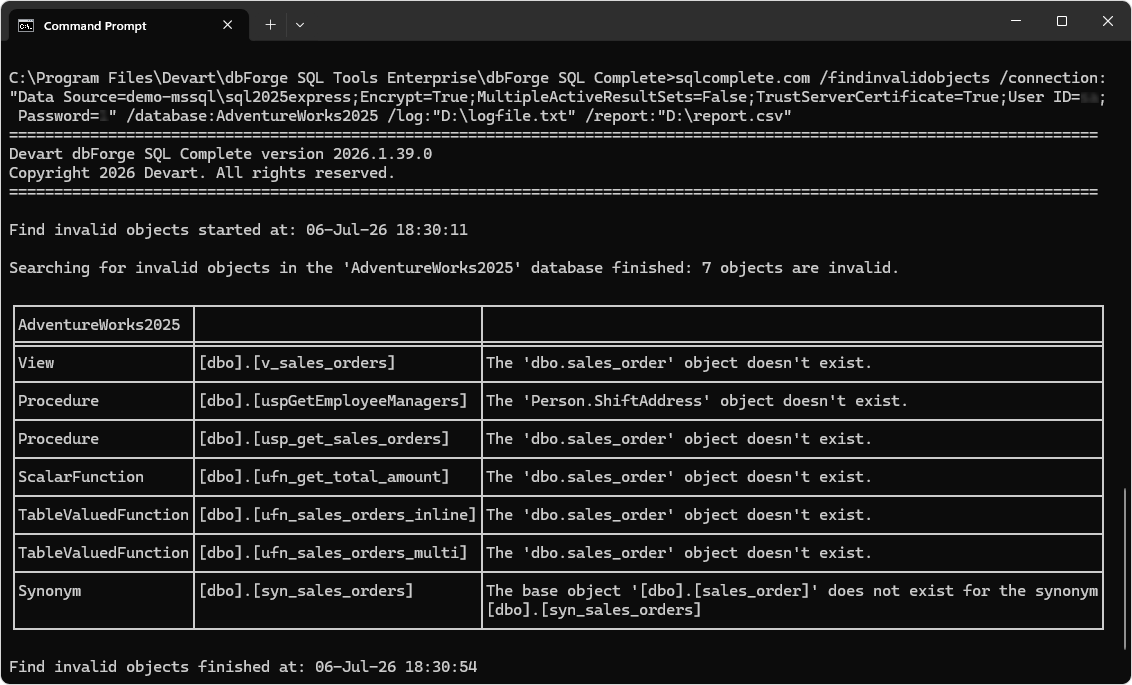
Let us find invalid objects in the AdventureWorks2025 database on the demo-mssql\sql2025express server and generate a report in the CSV file format.
To find invalid objects:
1. Open Command Prompt or terminal and navigate to the installation folder of dbForge SQL Complete. For this, you can use the cd command. The default path to this executable depends on where dbForge SQL Complete is installed. If you installed it:
-
As a standalone product
C:\Program Files\Devart\dbForge SQL Complete. -
As part of dbForge SQL Tools
C:\Program Files\Devart\dbForge SQL Tools\dbForge SQL Complete.
2. Enter the following command:
sqlcomplete.com /findinvalidobjects /connection:"Data Source=demo-mssql\sql2025express;Encrypt=True;MultipleActiveResultSets=False;TrustServerCertificate=True;User ID=admin; Password=123" /database:AdventureWorks2025 /log:"D:\logfile.txt" /report:"D:\report.csv"
where:
demo-mssql\sql2025express– The server name.admin– The user name to connect to the server.123– The password to connect to the server.AdventureWorks2025– The name of the database to analyze for invalid objects.D:\logfile.txt– The path to the log file.D:\report.csv– The path to the report file.
3. Press Enter to execute the command.
The command displays a table listing the invalid objects and generates log and report files.
Log file

Report

Troubleshooting
You may face the following error while looking for invalid objects in databases with more than 5,000 objects:
Could not find a part of the path 'C:\Users\User1\AppData\Local\Temp\Devart\691f7f39ac7f43da86.tmp'
The root cause of this issue is the restricted temporary file usage.
| Possible reason | How to fix |
| There was not enough space on the disk C:\ to create temporary files. | Create the C:\Users%WinUser%\AppData\Local\Temp\Devart folder manually. |
| Saving the temporary file might have failed due to timeout caused by antivirus. | Disable antivirus. |
| Restricted access to the Devart folder for the user who launches SSMS. | Make sure all the users have both Read and Write permissions. |