> ## Documentation Index
> Fetch the complete documentation index at: https://jam.dev/docs/llms.txt
> Use this file to discover all available pages before exploring further.
# Workspace setup
> Set up a shared workspace so your whole team can capture, organize, and route bugs to the tools you already use.
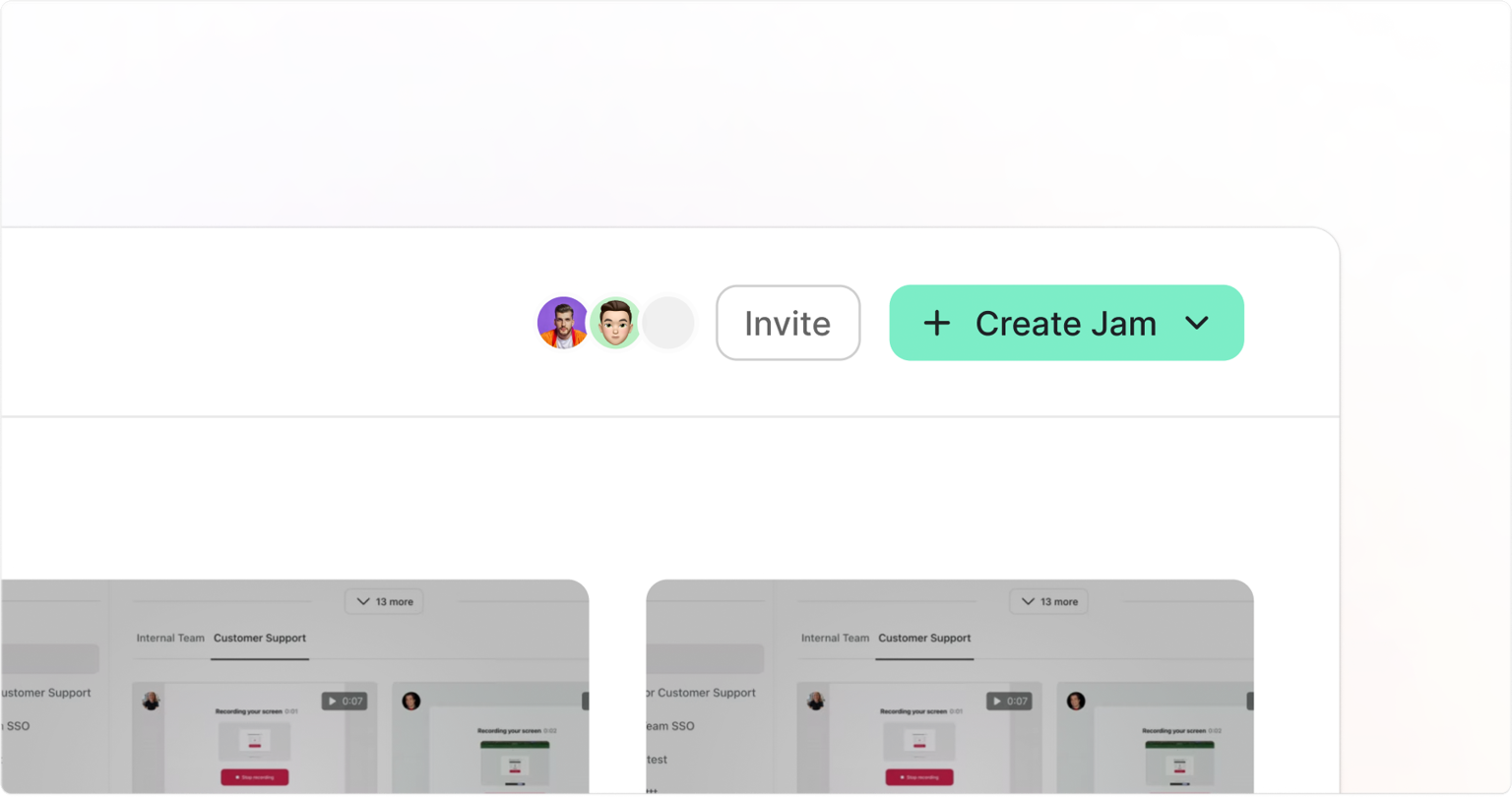 A Jam workspace gives your whole team a shared place to capture, organize, and debug issues together.
## Set up your workspace
If you haven't created a workspace yet, sign in at [jam.dev](https://jam.dev/login) and create one. Workspaces [support domain-based discovery](#workspace-visibility). Anyone with a matching email domain can find and request to join your workspace automatically.
## Invite members
Log in to [jam.dev](https://jam.dev/login) and go to your workspace.
Click **Invite** in the dashboard header.
Invite members by email address or share the workspace invite link.
Adjust member roles and permissions as needed. See [Members and Roles](/docs/members-and-roles) for the full breakdown of available roles.
## Workspace visibility
A Jam workspace gives your whole team a shared place to capture, organize, and debug issues together.
## Set up your workspace
If you haven't created a workspace yet, sign in at [jam.dev](https://jam.dev/login) and create one. Workspaces [support domain-based discovery](#workspace-visibility). Anyone with a matching email domain can find and request to join your workspace automatically.
## Invite members
Log in to [jam.dev](https://jam.dev/login) and go to your workspace.
Click **Invite** in the dashboard header.
Invite members by email address or share the workspace invite link.
Adjust member roles and permissions as needed. See [Members and Roles](/docs/members-and-roles) for the full breakdown of available roles.
## Workspace visibility
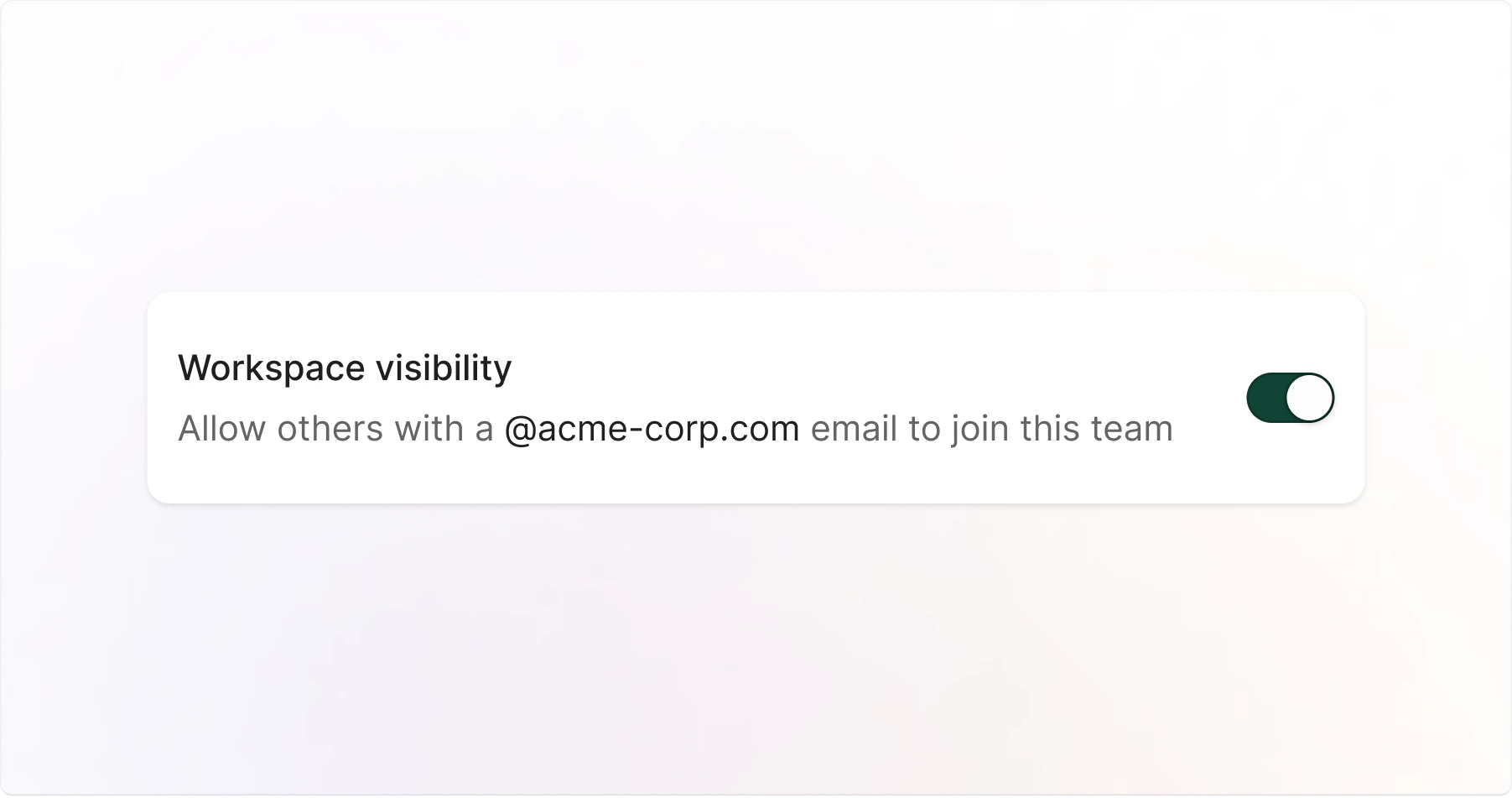 Workspace visibility controls whether your workspace appears to colleagues in your company. When enabled, anyone who signs up or logs in with your company email instantly sees an option to join your workspace.
### Managing Workspace Visibility
Workspace visibility controls where your workspace appears:
* **Sign-up** for new users with your company email domain
* **In-product prompts** for existing Jam users with your company email domain
Users join as **Viewers** and can be promoted to other roles by workspace admins
#### Default Behavior
Workspace visibility availability depends on your plan:
* **Free and Team plan**: enabled by default for all workspaces
* **Enterprise Plan**: Not available. Enterprise workspaces use advanced security and access controls.
* **Legacy Plans**: Disabled by default. Upgrade to the new Team plan to enable this option
### Configure
Only workspace admins can change visibility settings:
Go to [**Settings**](https://jam.dev/s/settings).
Set **Workspace visibility** to **On** or **Off**.
**New users with your @[company.com](http://company.com) email**\
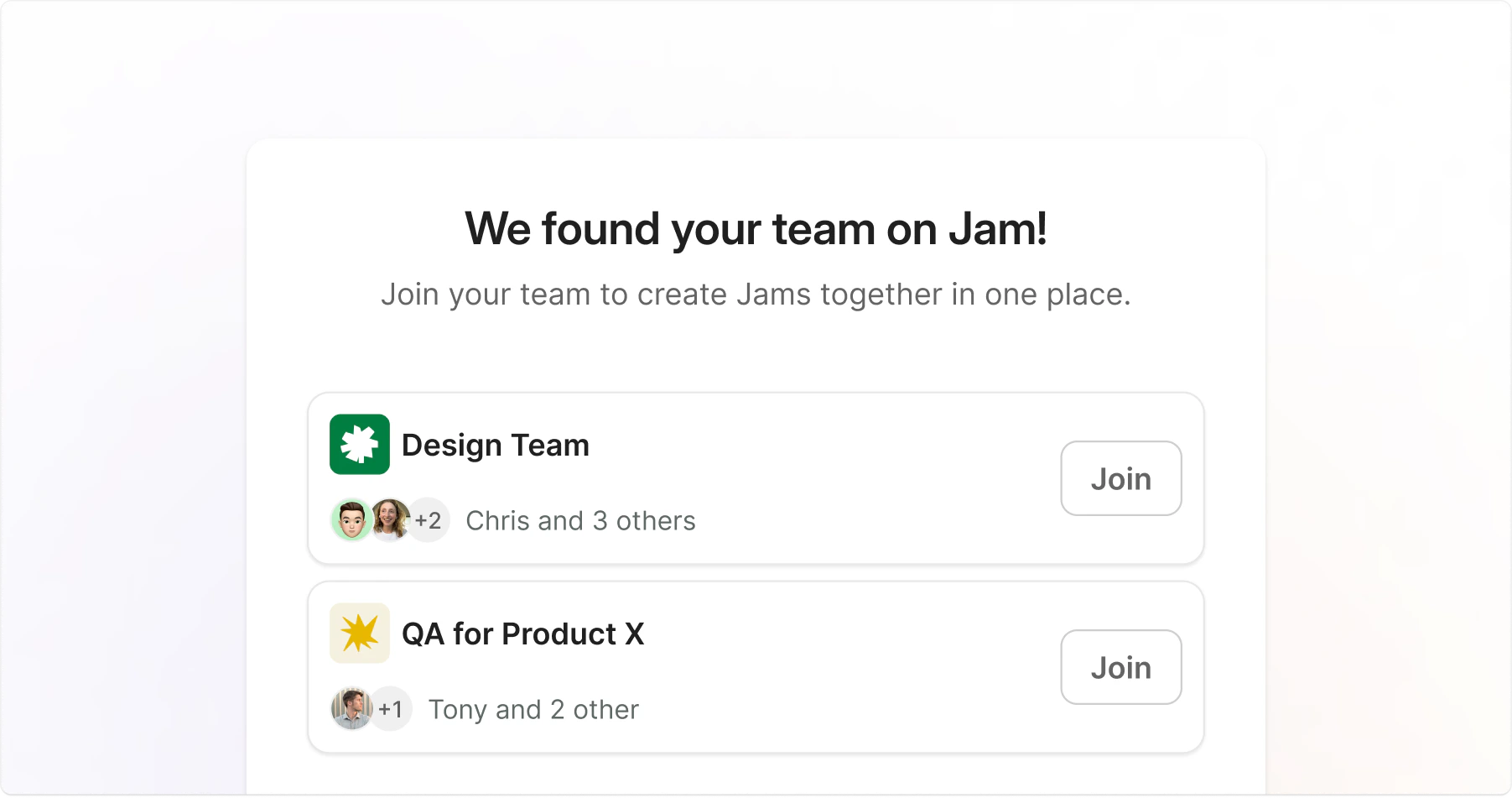
Anyone signing up or logging in with your company email instantly sees the option to join your workspace.
Workspace visibility controls whether your workspace appears to colleagues in your company. When enabled, anyone who signs up or logs in with your company email instantly sees an option to join your workspace.
### Managing Workspace Visibility
Workspace visibility controls where your workspace appears:
* **Sign-up** for new users with your company email domain
* **In-product prompts** for existing Jam users with your company email domain
Users join as **Viewers** and can be promoted to other roles by workspace admins
#### Default Behavior
Workspace visibility availability depends on your plan:
* **Free and Team plan**: enabled by default for all workspaces
* **Enterprise Plan**: Not available. Enterprise workspaces use advanced security and access controls.
* **Legacy Plans**: Disabled by default. Upgrade to the new Team plan to enable this option
### Configure
Only workspace admins can change visibility settings:
Go to [**Settings**](https://jam.dev/s/settings).
Set **Workspace visibility** to **On** or **Off**.
**New users with your @[company.com](http://company.com) email**\
Anyone signing up or logging in with your company email instantly sees the option to join your workspace.
 **New users with your @[company.com](http://company.com) email**\
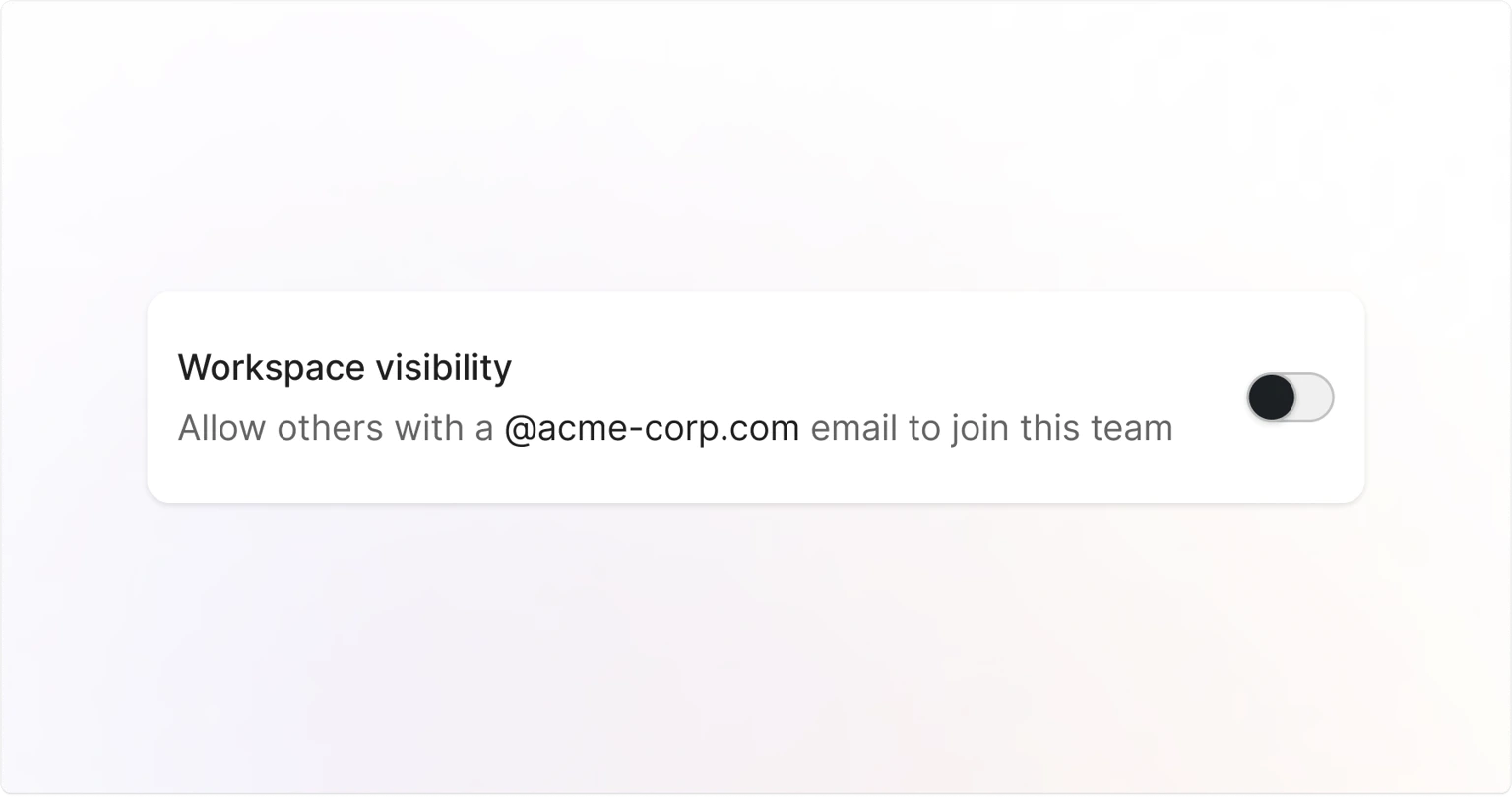
Your workspace is hidden from automatic discovery.
### Privacy considerations
Workspace discoverability is separate from [access controls](/docs/access-controls), which determine who can view your Jams:
* **Workspace visibility**: Controls whether users with your domain can find and join your workspace
* **Access Controls**: Controls who can view your Jams and folders
Workspace admins get notified each time someone joins.
You can have discoverability enabled while still keeping strict access controls for your content.
**New users with your @[company.com](http://company.com) email**\
Your workspace is hidden from automatic discovery.
### Privacy considerations
Workspace discoverability is separate from [access controls](/docs/access-controls), which determine who can view your Jams:
* **Workspace visibility**: Controls whether users with your domain can find and join your workspace
* **Access Controls**: Controls who can view your Jams and folders
Workspace admins get notified each time someone joins.
You can have discoverability enabled while still keeping strict access controls for your content.