My macOS/ Ubuntu dotfiles.
- Fork this repo to your own account.
- For macOS:
xcode-select --install- Log into Mac App Store
export github_user=YOUR_GITHUB_USER_NAMEbash -c "$(curl -fsSL https://raw.github.com/$github_user/dotfiles/master/bin/dotfiles)" && source ~/.bashrc- Update
~/.gitconfigwith your name and email - Read the [post-install document](reference/Post-Install Setup.md)
I've been futzing around with bash and zsh for years and moving bits and pieces of my configurations around from machine to machine and platform to platform. After seeing all of the work put into various dotfile repos, I finally forked several and merged them into what I wanted.
The core of the system is by @cowboy: execute a single command to "bootstrap" a new system to pull down all of my dotfiles and configs, as well as install all the tools I commonly use. In addition, be able to re-execute that command at any time to synchronize anything that might have changed. Finally, make it easy to re-integrate changes back in, so that other machines could be updated.
The command is [dotfiles][dotfiles].
When [dotfiles][dotfiles] is run for the first time, it does a few things:
- In Ubuntu, Git is installed if necessary via APT (it's already there in macOS).
- This repo is cloned into your user directory, under
~/.dotfiles. - Files in
/copyare copied into~/. (read more) - Files in
/linkare symlinked into~/. (read more) - You are prompted to choose scripts in
/initto be executed. The installer attempts to only select relevant scripts, based on the detected OS and the script filename. - Your chosen init scripts are executed (in alphanumeric order, hence the funky names). (read more)
On subsequent runs, step 1 is skipped, step 2 just updates the already-existing repo, and step 5 remembers what you selected the last time. The other steps are the same.
- The
/backupsdirectory gets created when necessary. Any files in~/that would have been overwritten by files in/copyor/linkget backed up there. - The
/bindirectory contains executable shell scripts (including the [dotfiles][dotfiles] script) and symlinks to executable shell scripts. This directory is added to the path. - The
/cachesdirectory contains cached files, used by some scripts or functions. - The
/confdirectory just exists. If a config file doesn't need to go in~/, reference it from the/confdirectory. - The
/extraare scripts to be run once. They aren't hooked into the regular dotfiles command due to either needing input during execution or taking a long, long time to run. - The
/referenceholds extra config files as well as an app list that includes apps, plugins, browser extensions, etc... - The
/sourcedirectory contains files that are sourced whenever a new shell is opened (in alphanumeric order, hence the funky names). - The
/testdirectory contains unit tests for especially complicated bash functions. - The
/vendordirectory contains third-party libraries.
Any file in the /copy subdirectory will be copied into ~/. Any file that needs to be modified with personal information (like copy/.gitconfig which contains an email address and private key) should be copied into ~/. Because the file you'll be editing is no longer in ~/.dotfiles, it's less likely to be accidentally committed into your public dotfiles repo.
Any file in the /link subdirectory gets symlinked into ~/ with ln -s. Edit one or the other, and you change the file in both places. Don't link files containing sensitive data, or you might accidentally commit that data! If you're linking a directory that might contain sensitive data (like ~/.ssh) add the sensitive files to your .gitignore file!
Scripts in the /init subdirectory will be executed. A whole bunch of things will be installed, but only if they aren't already.
- Minor XCode init via the init/10_osx_xcode.sh script.
- Homebrew via the init/20_osx_homebrew.sh script. This script also installs (via the Brewfile):
- Recipes
- Casks
- Fonts
- APT packages via the init/20_ubuntu_apt.sh script
- Node.js, npm and yarn via the init/50_node.sh script
- Ruby, gems and rbenv via the init/50_ruby.sh script
- Vim plugins via the init/50_vim.sh script
Because the [dotfiles][dotfiles] script is completely self-contained, you should be able to delete everything else from your dotfiles repo fork, and it will still work. The only thing it really cares about are the /copy, /link and /init subdirectories, which will be ignored if they are empty or don't exist.
If you modify things and notice a bug or an improvement, file an issue or a pull request and let me know.
Also, before installing, be sure to read my gently-worded note.
Note: Before running this, you may have to set Git to use HTTPS instead of GIT due to corporate firewalls (or whatever other reasons you may have). If so, run:
git config --global url."https://".insteadOf git://- You need to be an administrator (for
sudo). - You need to have XCode or, at the very minimum, the XCode Command Line Tools, which are available as a much smaller download.
The easiest way to install the XCode Command Line Tools in macOS 10.9+ is to open up a terminal, type xcode-select --install and follow the prompts.
- You need to be an administrator (for
sudo). - You should at least update/upgrade APT with
sudo apt-get -qq update && sudo apt-get -qq dist-upgradefirst.
If you're not me, please do not install dotfiles directly from this repo!
Why? Because I often completely break this repo while updating. Which means that if I do that and you run the dotfiles command, your home directory will burst into flames, and you'll have to go buy a new computer. No, not really, but it will be very messy.
- Read my gently-worded note
- Fork this repo
- Open a terminal/shell and do this:
export github_user=YOUR_GITHUB_USER_NAME

bash -c "$(curl -fsSL https://raw.github.com/$github_user/dotfiles/master/bin/dotfiles)" && source ~/.bashrc
Since you'll be using the [dotfiles][dotfiles] command on subsequent runs, you'll only have to export the github_user variable for the initial install.
There's a lot of stuff that requires admin access via sudo, so be warned that you might need to enter your password here or there.
bash -c "$(curl -fsSL https://bit.ly/gubler_dotfiles)" && source ~/.bashrcAfter you run the install, you will need to:
-
Configure the
.gitconfigfile that is copied to your home directory.- Set your name and email address at the top of the file
- If you want to use the
https://protocol instead ofgit://, you will need to uncomment the following from the bottom of the file:
[url "https://"] insteadOf = git:// -
Either copy your SSH keys from wherever you securely store them or generate new ones with:
ssh-keygen -t rsa -b 4096 -C "your_email@example.com"I have some additional [post-install configuration instructions](refence/Post-Install Setup.md).
A whole bunch of things will be installed, but only if they aren't already.
Any file in the copy subdirectory will be copied into ~/. Any file that needs to be modified with personal information (like .gitconfig which contains an email address and private key) should be copied into ~/. Because the file you'll be editing is no longer in ~/.dotfiles, it's less likely to be accidentally committed into your public dotfiles repo.
This step will not copy over more recent versions of files.
Any file in the link subdirectory gets symbolically linked with ln -s into ~/. Edit these, and you change the file in the repo. Don't link files containing sensitive data, or you might accidentally commit that data!
Your .ssh folder is in the link directory, but rsa keys (public and private) as well as known_hosts and authorized_keys are ignored.
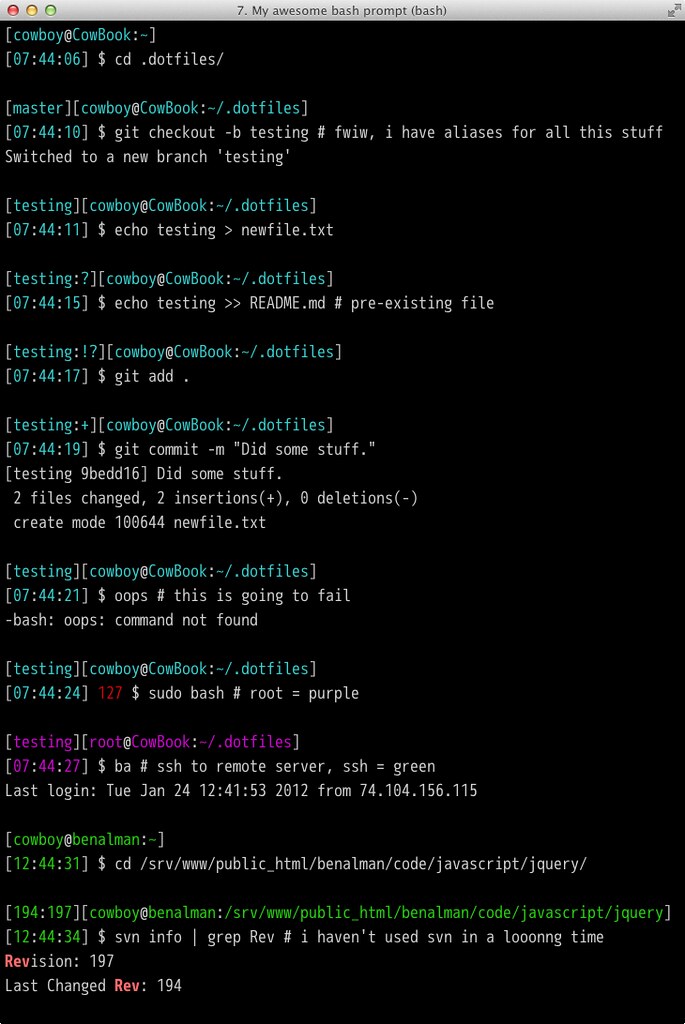
To keep things easy, the ~/.bashrc and ~/.bash_profile files are extremely simple, and should never need to be modified. Instead, add your aliases, functions, settings, etc into one of the files in the source subdirectory, or add a new file. They're all automatically sourced when a new shell is opened. Take a look, I have a lot of aliases and functions. I even have @cowboy's fancy prompt that shows the current directory, time and current git/svn repo status.
In addition to the aforementioned [dotfiles][dotfiles] script, there are a few other [bash scripts][bin].
- [dotfiles][dotfiles] - (re)initialize dotfiles. It might ask for your password (for
sudo). - src - (re)source all files in
sourcedirectory - Look through the [bin][bin] subdirectory for a few more.
Currently working with @cowboy's awesome bash prompt. It shows git and svn repo status, a timestamp, error exit codes, and even changes color depending on how you've logged in.
Git repos display as [branch:flags] where flags are:
? untracked files
! changed (but unstaged) files
+ staged files
SVN repos display as [rev1:rev2] where rev1 and rev2 are:
rev1 last changed revision
rev2 revision
Check it out:
Modified from @cowboy, @mathiasbynes and @paulirish. I'm just riding on the hard work they've done (especially @cowboy).
Cortex Podcast wallpaper in reference directory by GrafikSyndikat
Copyright (c) 2016 Daryl Gubler
Licensed under the MIT license.